


Answer
Departments must exist before you can assign an employee to them. If you have not yet created your departments, see How Do I Setup Departments? first.
In the Desktop App
Open the employee record, then go to Employees >> Details >> Departments. Add each department the employee works in and set the Percentage Assigned for each one. The percentages represent how each pay is split across those departments. If an employee works entirely in one department, set that department to 100%.
To override the split for a specific pay, open the pay and adjust the department split within the pay editor.
To update department allocations across multiple past pays at once, use Tools >> Retrospective Tool.
In the Online (Web/Mobile) App
Navigate to the employee record, then select the Departments tab. The tab heading reads Assign this employee to departments and set how their pay is split across them.
- Click the add row button to add a department entry.
- Choose the Department Name from the drop-down list.
- Set the Percentage Assigned for that department.
- Save the row. Repeat for each additional department.
The combined percentages must not exceed 100%. If they do, a warning will appear and the record will not save correctly.
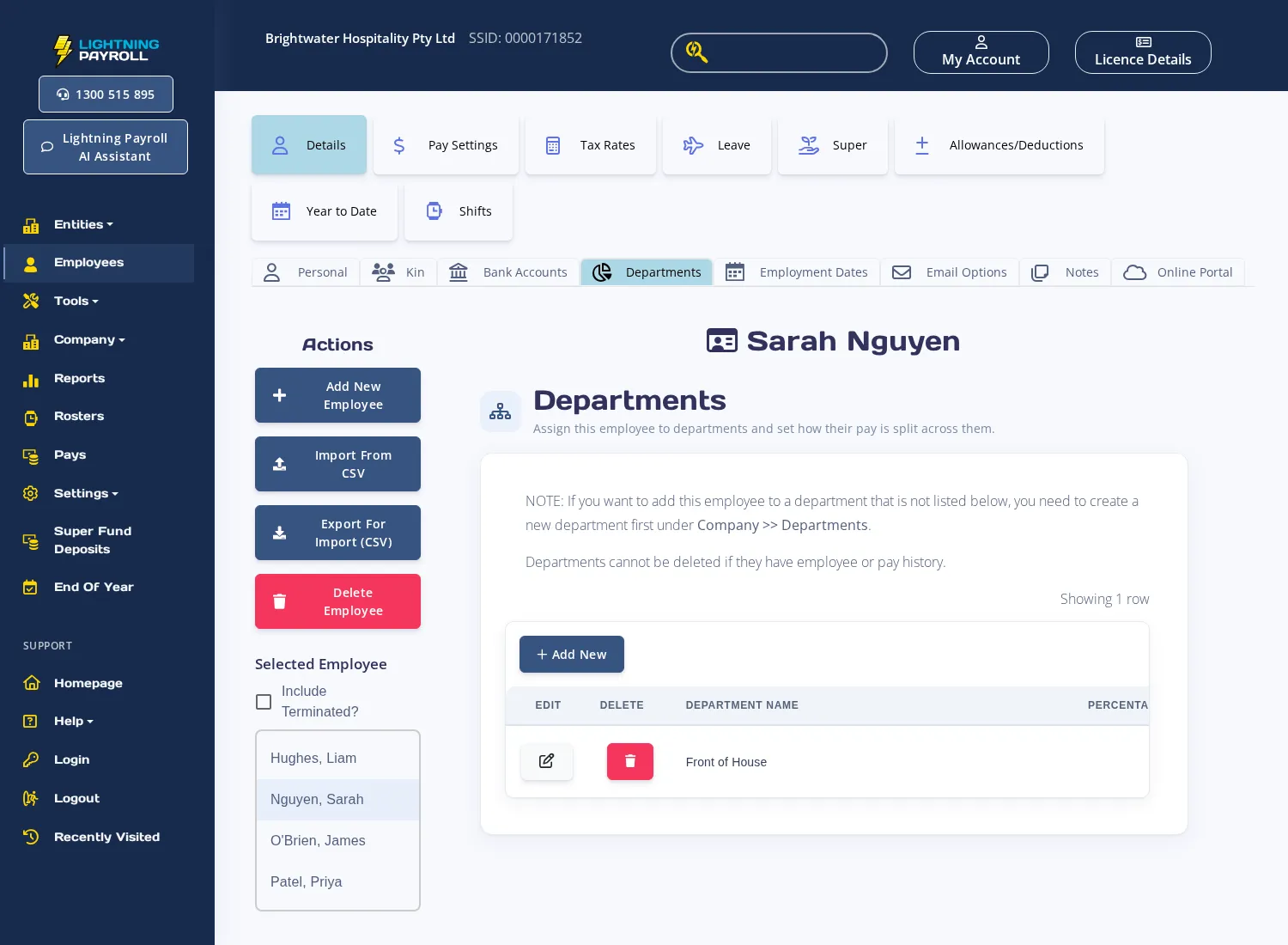
If the department you need is not in the list, go to Company >> Departments and add it there first.
To override the department split for a specific pay, open the pay from the Pays screen and select the Departments section within the pay editor.
To update department allocations across multiple past pays at once, use the Tools >> Retrospective Tool and select Departments as the change type.

