


Answer
Sharing payroll data in Lightning Payroll can be done in several ways, depending on whether you use the desktop or web version. Below are simple steps for different scenarios.
Example 1: Desktop User Sharing Data With a Non-Subscriber
If your accountant or recipient does not subscribe to Lightning Payroll, you can set them up as an additional user. Go to Settings >> Password And Security, then use Add New User under the Additional Users list to create them with their email address.
Creating a user in the desktop app does not automatically create a web account for them. To share data via the web, sync your desktop data up to the web version:
- Go to Settings >> Other Settings in the desktop app.
- Tick “Sync Data Up To Web App?”.
- Log in using your website credentials (not necessarily the same as your local database password).
- Optionally, tick “Manually control web sync uploads/downloads?” so you are not prompted to log in each time you use the desktop app.
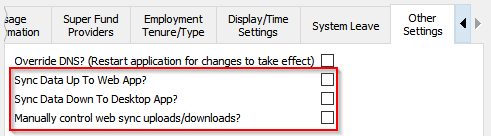
Once the data is synced to the web, any missing non-admin user accounts are created automatically, and each new user receives an email with their login details. For detailed instructions on web syncing, see this support article.
Example 2: Desktop User Sharing With Another Lightning Payroll Subscriber
If the recipient already uses Lightning Payroll, create a backup file and send it to them:
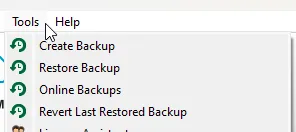
- Go to Tools >> Create Backup to generate a backup file.
- Email the backup file to the recipient.
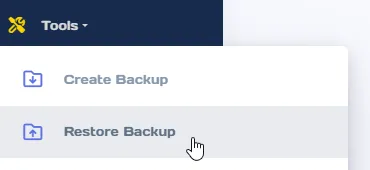
- The recipient can restore the backup via Tools >> Restore Backup.
This method works whether the recipient uses the desktop or web version of Lightning Payroll.
Example 3: Web App User Sharing Data With a Non-Subscriber
If you use the web app and want to share data with someone who does not have a Lightning Payroll subscription:
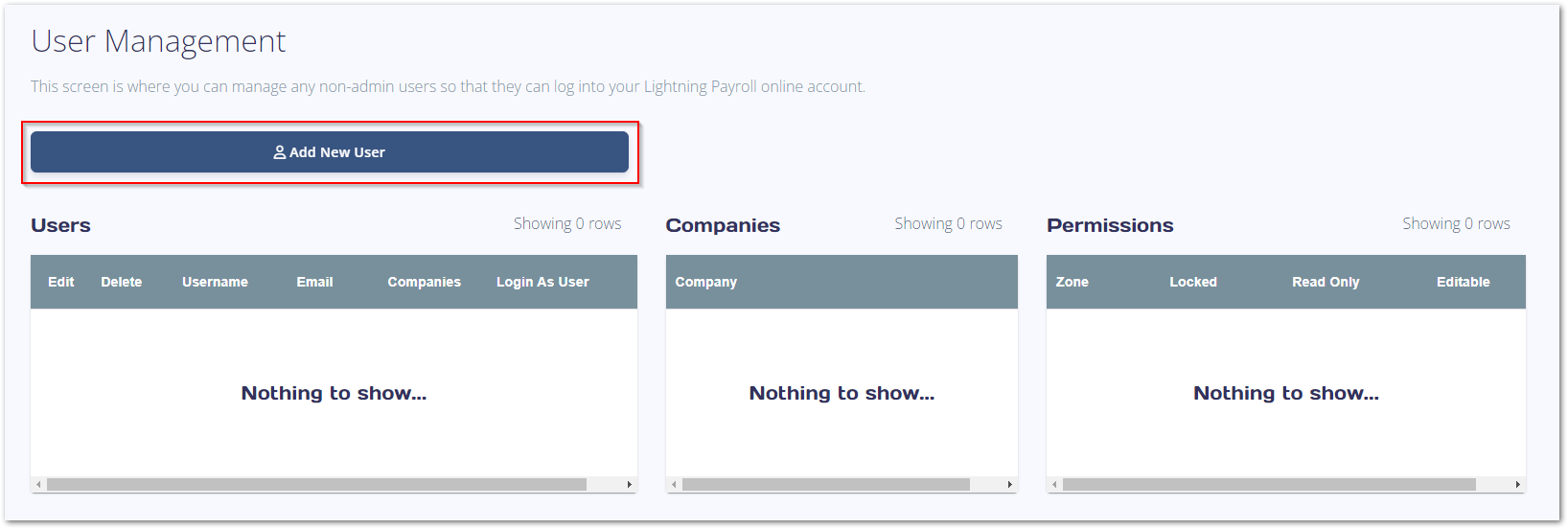
- Go to Settings >> User Management in the web app.
- Create a new user by entering their email address.
The account is created immediately and the new user is notified by email. Learn more about managing users here. Scroll down for web-app-specific information.
Example 4: Web App User Sharing With a Subscriber
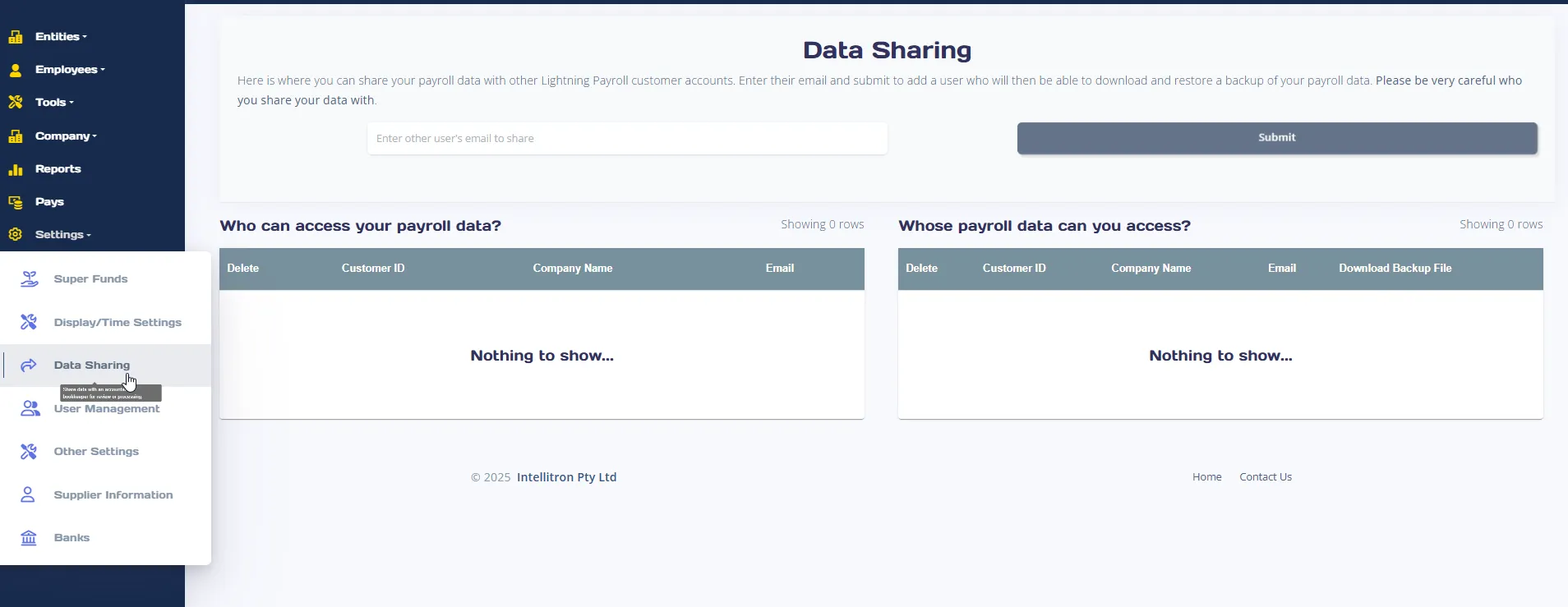
If the recipient already uses Lightning Payroll, you can either use the steps from Example 3 or use the Data Sharing feature:
- Go to Settings >> Data Sharing.
- Use this feature to connect your account to the recipient's account for easier data sharing.
This option simplifies sharing by letting linked accounts access shared data directly.
These methods provide secure, flexible sharing of payroll data in Lightning Payroll, tailored to your needs.

