Answer
Lightning Payroll lets you set up custom Employment Tenures and Types in addition to the built-in options, so your payroll setup can reflect the roles in your business.
Default Settings
By default, Lightning Payroll includes the following Employment Tenures:
- Permanent
- Temporary
And the following Employment Types:
- Full-time
- Part-time
- Casual
Setting an Employment Tenure or Type for an Employee
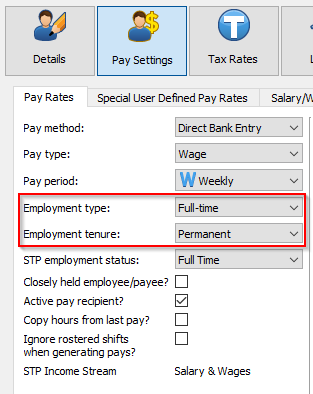
To choose an Employment Tenure or Type for an employee, open their profile:
- Go to Employees from the main menu.
- Select the employee you want to edit.
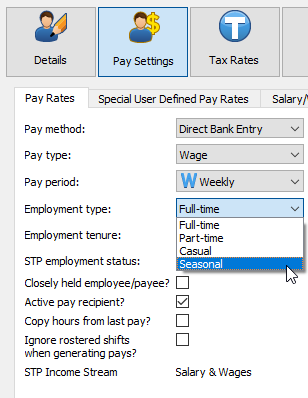
- Open Pay Settings >> Pay Rates to view or change their Employment Tenure and Type.
Adding a New Employment Tenure or Type
To add a new Employment Tenure or Type:
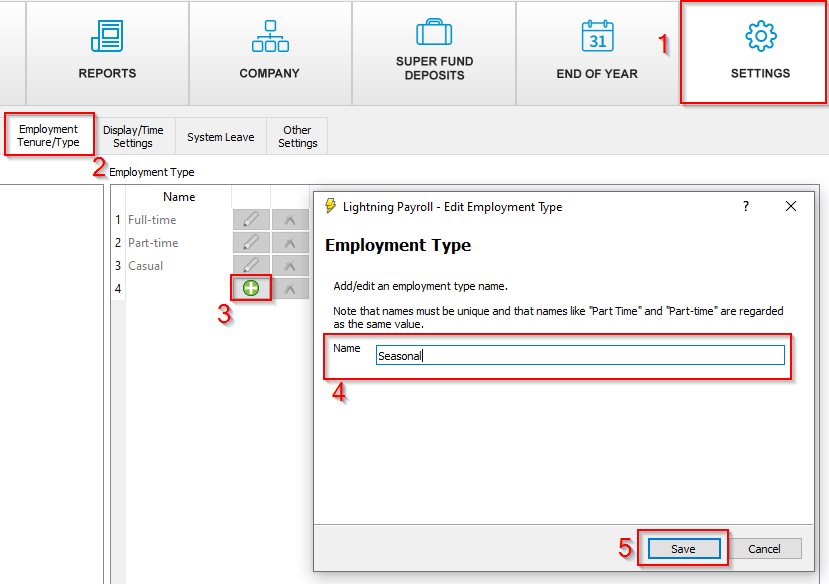
- Go to Settings >> Employment Tenure/Type.
- In the Employment Tenure table on the left, click the green plus to add a new tenure. Or click the green plus in the Employment Type table on the right to add a new type.
- Enter a name for the new entry and save your changes.
Selecting a Custom Tenure or Type
Once added, your new Employment Tenure or Type is available from the drop-down menu in the employee's Pay Settings >> Pay Rates.