


Answer
The Report Builder lets you design your own payroll reports by choosing the exact columns and employees you need, setting a date range, and saving the layout for reuse. There are two builders: one for pay data and one for employee data.
In the desktop app
- Open the Reports tab, then click the Custom Reports sub-tab.
- Click Employee Report Builder or Pay Report Builder depending on the data you need.
- In the Report Name field, type a name for your report.
- Set the Start Date and End Date for the report period.
- Select the employees to include from the employees list. All employees are selected by default.
- Select the columns to include from the columns list. Use the up and down arrows to reorder them.
- Adjust the optional filters as needed: Group By Department, Use Processed Date, Show Totals Only, or Show Terminated Employees?.
- Click Save Report to save the layout. You will be prompted to confirm the name.
- Click Print Report to preview the report as a PDF, or Export to CSV to download the data.
In the online (web/mobile) app
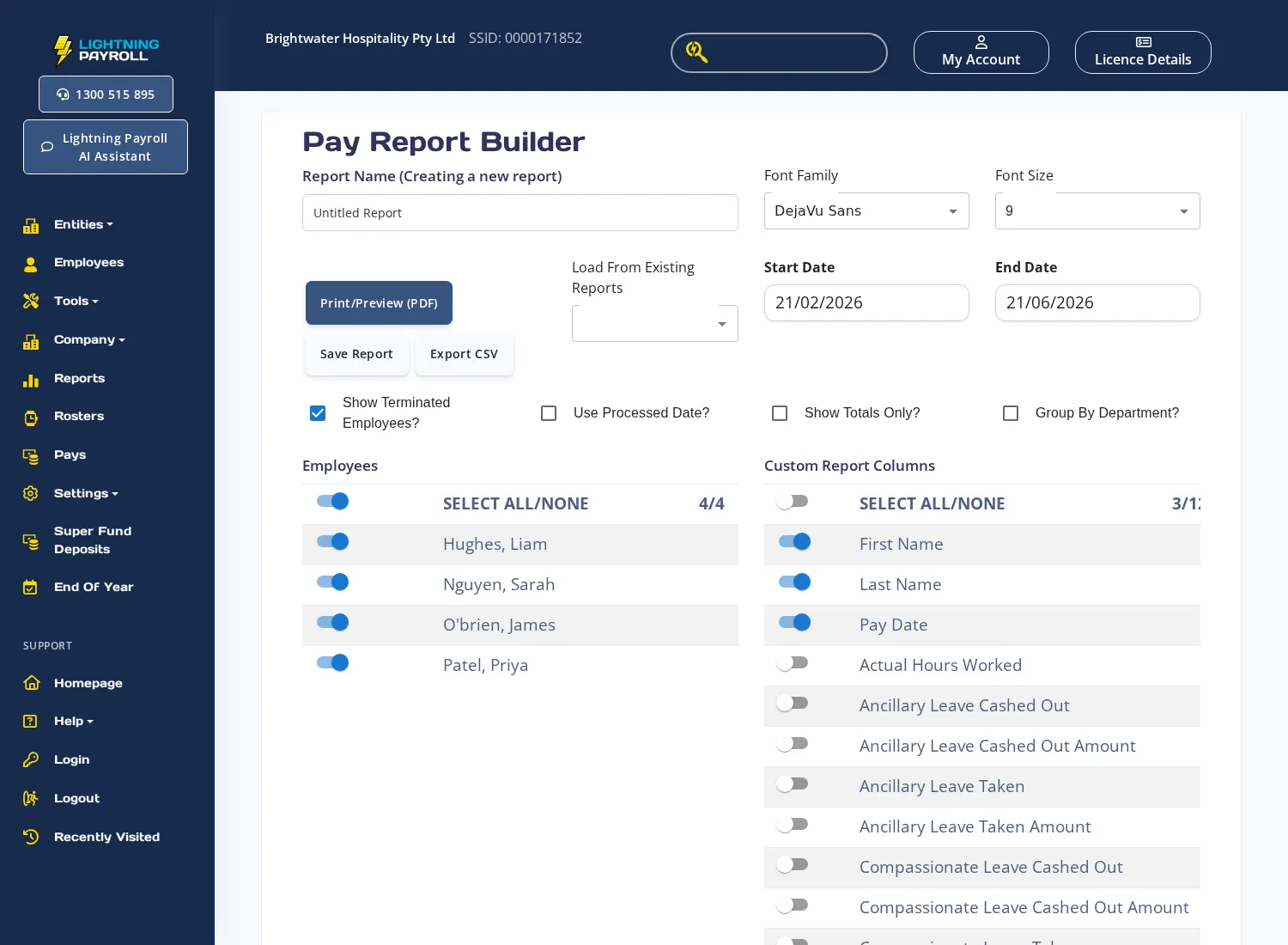
- Go to Reports. Under the Custom Reports section near the bottom of the page, click Pay Report Builder or Employee Report Builder.
- In the Report Name field, type a name for your report. The current status (creating new or editing an existing report) is shown in brackets next to the field label.
- Set the Start Date and End Date.
- Select the employees to include from the Employees list on the left.
- Select the columns to include from the Custom Report Columns list on the right. Use the up and down arrows next to each selected column to reorder them.
- Optionally choose a Default Sort Column and tick Descending? if needed.
- Adjust the optional checkboxes as needed: Show Terminated Employees?, Use Processed Date?, Show Totals Only?, or Group By Department?.
- Click Save Report to save the layout for future use.
- Click Print/Preview (PDF) to open a preview, or Export CSV to download the data.
Loading and editing a saved report
To reopen a saved report, use the Load From Existing Reports drop-down (online) or click Open Report (desktop) and select the report name. The builder will reload with the saved column and filter selections, which you can adjust before running or saving again.
To see which columns are available for each builder type, refer to What Does Each Employee Report Builder Column Show? and What Does Each Pay Report Builder Column Show?. To delete a saved report, see How Can I Delete A Custom Report?. For an explanation of the Use Processed Date? option, see What Does the Use Processed Date Tickbox Do When Running Reports?.

