


Answer
The Departmental Analysis report shows pay totals for a chosen date range, broken down by department. Departments must be set up and employees assigned to them before the report will show meaningful data. See How Do I Setup Departments? for instructions.
In the Desktop App
- Click Reports in the main navigation.
- Under the Pay section, click Departmental Analysis.
- Set the Start Date and End Date for the report.
- Tick Include Super? (AU) or Include KiwiSaver (Employer)? (NZ) if you want employer superannuation or KiwiSaver contributions included in the totals.
- Tick Use Processed Date? if you want pays filtered by the date they were processed rather than the pay end date.
- Click OK to generate the report.
In the Online (Web/Mobile) App
- Go to Reports in the main navigation.
- Under the Pay category, select Departmental Report.
- Set the Start Date and End Date.
- Toggle Include Super? on if you want superannuation or KiwiSaver employer contributions included.
- Toggle Use Processed Date? on if you want pays filtered by processed date rather than pay end date.
- Click Generate Report. The report opens as a PDF preview.
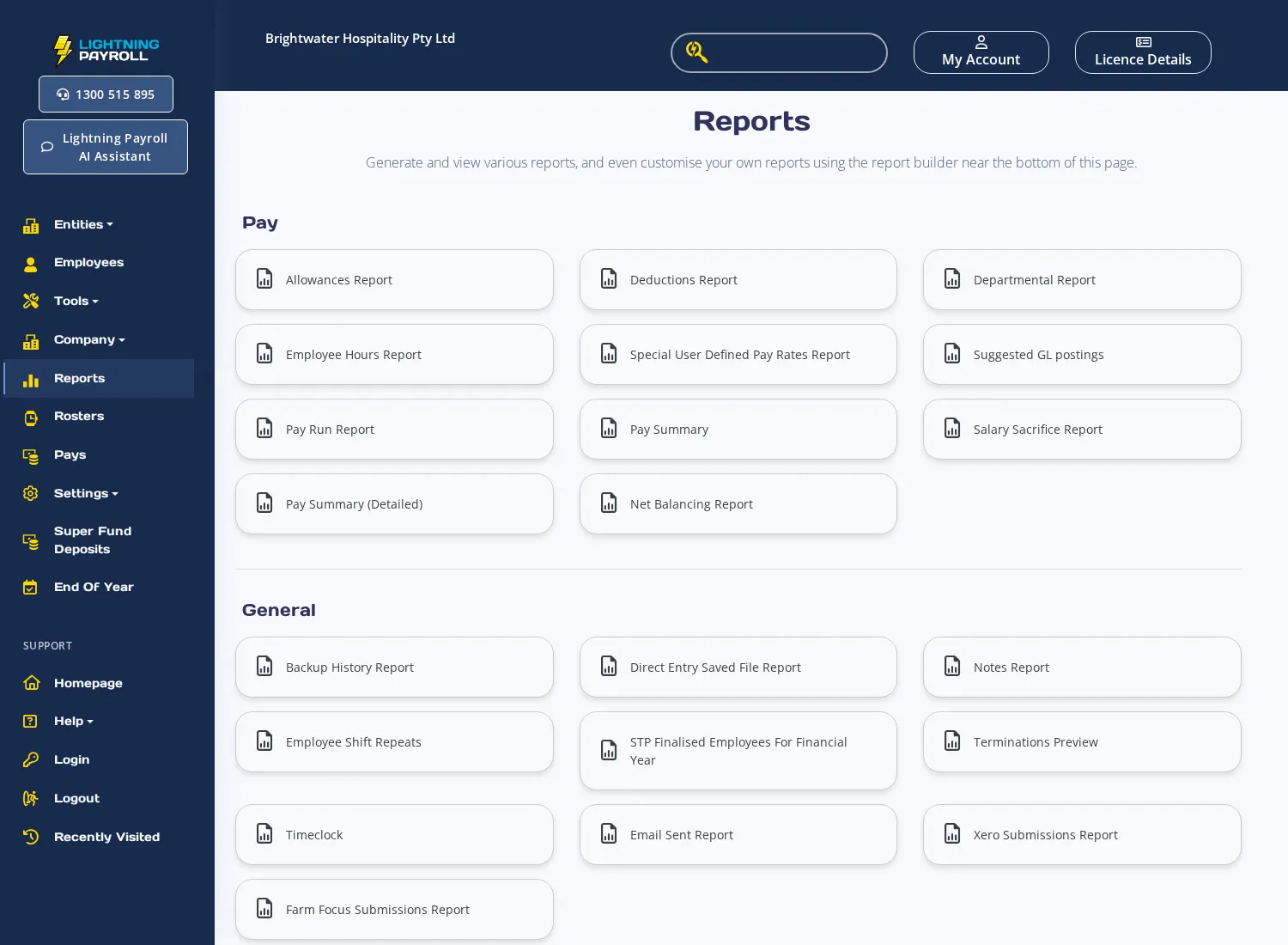
Once the report is generated you can Download PDF, Export CSV, or Email Report to send the report as a PDF attachment to one or more email addresses.

