


Answer
Database errors in the Lightning Payroll desktop app usually fall into one of two categories: a connection or load failure when the program starts, or corruption caused by an unexpected shutdown, system crash, or hardware failure. The steps below cover both.
Step 1: Run the Database Repair Utility
If the program shows a message such as "unable to connect to the database" or "unable to load the database", open Lightning Payroll and, on the splash screen that appears on startup, click the small help (question mark) icon in the lower-left corner to open the Utility Options dialog. Under Database Recovery Utilities, click Download Database Repair Utility. This downloads and runs a small tool that attempts to repair the current database file in place. The program should restart automatically afterwards.
For more detail on accessing the Utility Options dialog, see How Can I Access Database Recovery Tools And Other Advanced Data Folder Operations for Lightning Payroll Desktop?
Step 2: Restore From a Backup
Lightning Payroll automatically creates backups at key moments ÔÇö when the program closes, when a backup is restored, and during software upgrades. These backups are stored locally at C:Users{User}AppDataRoamingLightning Payrollauto_backup.
If the repair utility does not resolve the issue, use one of the two restore options also available in the Utility Options dialog:
- Download Auto Restore Utility ÔÇö restores your most recent automatic backup that was made before today. This is the quickest option if the corruption happened today.
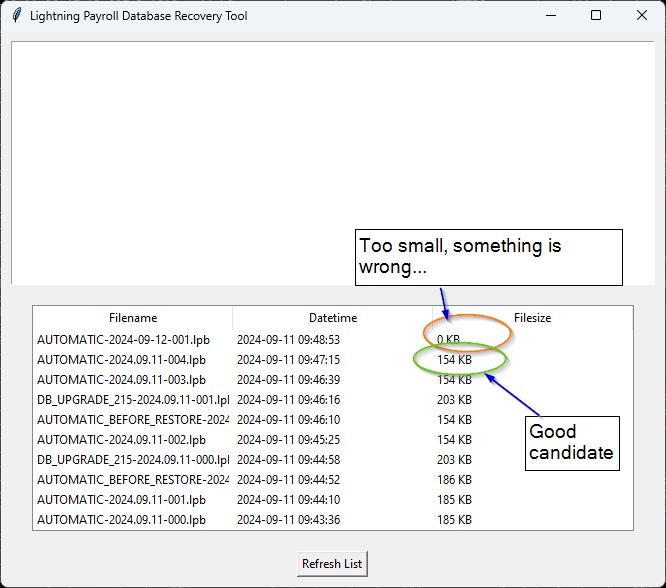
- Manual Recovery Tool ÔÇö opens a list of the most recent backups made on this computer so you can choose which one to restore. Select a backup and click Yes to confirm. A significantly smaller file size compared to other backups may indicate a corrupted file ÔÇö choose an earlier backup in that case.
Step 3: Reinstall the Program
If the problem persists after running the recovery tools, try uninstalling and reinstalling Lightning Payroll using the download links on our website. Your payroll data is not affected by a reinstall.
Step 4: Contact Support
If none of the above steps resolve the error, please contact our support team.

