


Answer
If you see an Access is denied error when updating Lightning Payroll, or if your anti-virus software has quarantined or blocked the program, this is a false positive. Lightning Payroll is built with Extended Validation (EV) code signing and Mac notarisation to verify its authenticity. Despite this, some security products flag it incorrectly.
Common causes of false positives include outdated anti-virus signature databases and running more than one security product simultaneously. Keeping your security software up to date and using a single solution reduces the risk.
Trend Micro
Trend Micro and Symantec are known to block Lightning Payroll updates with an Access is denied error.
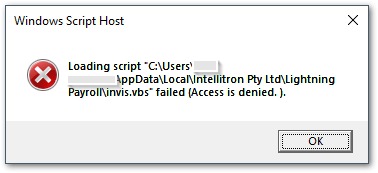
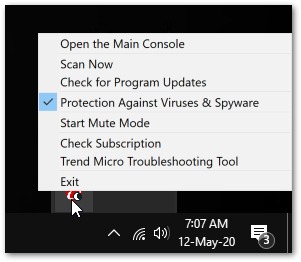
A quick short-term fix is to temporarily disable Trend Micro, then run the update again. Right-click the Trend Micro icon in the Windows system tray and untick Protection Against Viruses & Spyware.
For a permanent fix, follow these steps to restore the update script and add an exception:
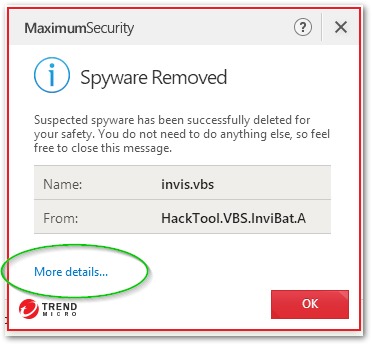
- After agreeing to the update, watch for a notification in the lower-right corner of your screen. If you do not see it, Trend Micro may be in Mute Mode — right-click the Trend Micro tray icon and untick Start Mute Mode to reveal notifications.
- Click More details... on the notification.
- Highlight the quarantined file on the left and click Restore.
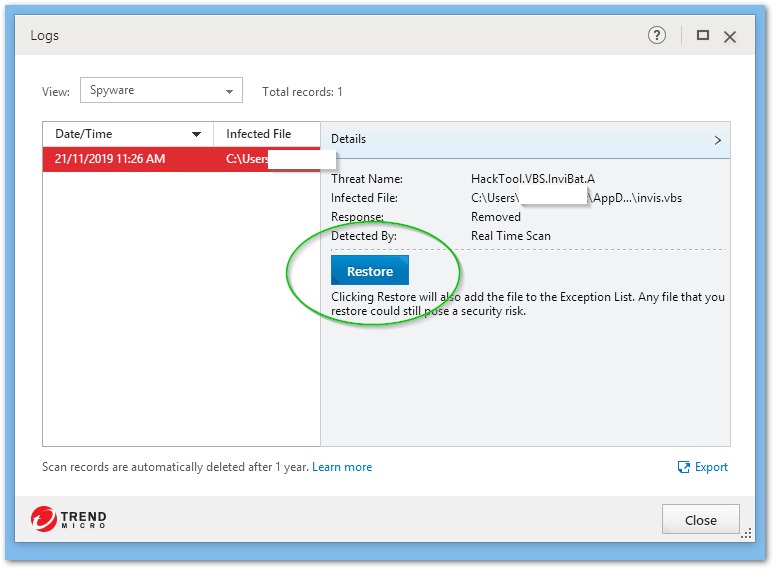
- Confirm by clicking Yes.
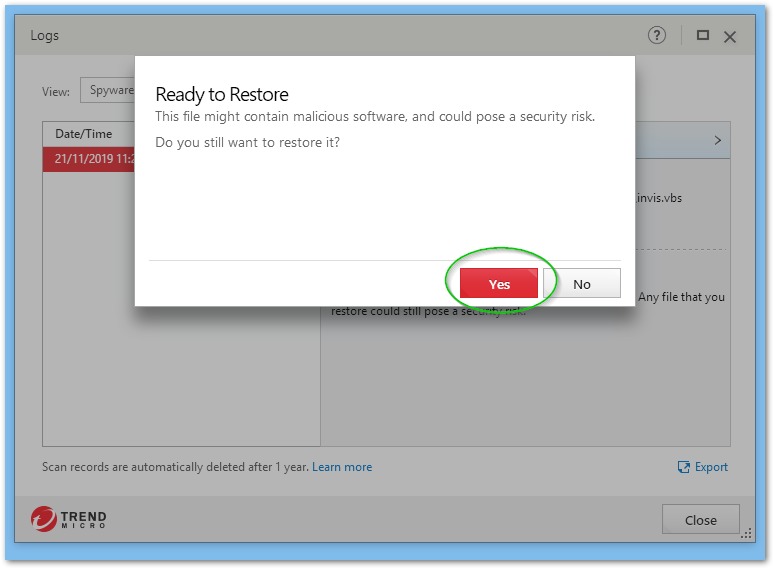
In some cases this process must be repeated a second time before the exception is saved. Once done, restart Lightning Payroll and agree to the update again — Trend Micro should no longer block it.
Norton
Norton occasionally flags Lightning Payroll as a threat. We report each occurrence to Norton and they whitelist the app, but it can take several days for the updated whitelist to reach all users. Each new release may trigger the detection again.
To prevent recurring detections, add Lightning Payroll’s working folders to Norton’s exclusion list. Follow the instructions on Norton’s official support page: Exclude files and folders from Norton scans.
Add the following folders to the exclusion list:
- %localappdata%Lightning Payroll — machine-specific app data (e.g. C:UsersYourNameAppDataLocalLightning Payroll)
- %localappdata%Intellitron Pty Ltd — update cache folder (e.g. C:UsersYourNameAppDataLocalIntellitron Pty Ltd)
- %appdata%Lightning Payroll — roaming app data including your payroll database (e.g. C:UsersYourNameAppDataRoamingLightning Payroll)
- %appdata%ATOMAS — ATO machine credentials (e.g. C:UsersYourNameAppDataRoamingATOMAS)
If Lightning Payroll has already been blocked by Norton, follow these Norton instructions to unblock it.
Other Anti-Virus Software
For all other security products, locate the whitelist, exceptions, or exclusions settings and add Lightning Payroll’s installation and data folders. Your security software’s help documentation or support website will have specific instructions. If you need assistance, contact our support team.
For general update instructions, see How Can I Update to the Latest Version of Lightning Payroll?

