Answer
If you cannot open the program or receive an error such as 'Failed to execute script payroll' or 'Ordinal 318 Not Found' when trying to open Lightning Payroll, you can resolve this by restarting your computer and reinstalling the program. Your pay data is safe and won't go anywhere.
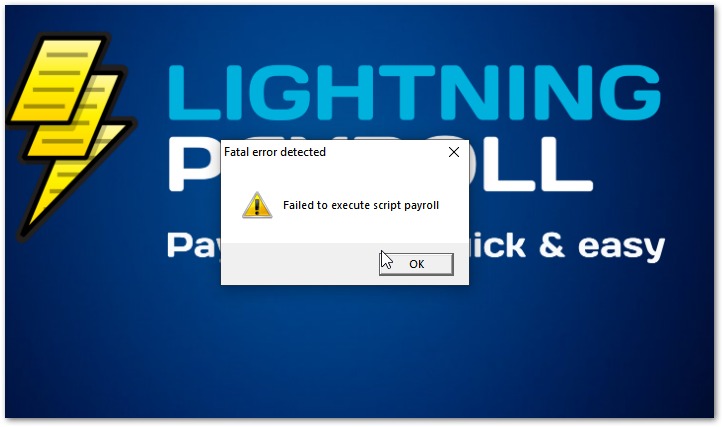
The most common cause of the 'Failed to execute script payroll' error is reinstalling Lightning Payroll while it was still running in the background. Restarting your computer clears this and allows a clean installation.
Windows
Restart your computer first, then download and reinstall Lightning Payroll from here (Windows 8.1 and above).
Download Lightning Payroll for Windows
Mac
Restart your computer first, then download and reinstall Lightning Payroll from here (macOS 10.14 and above).
Download Lightning Payroll for Mac
If the error persists after reinstalling, try temporarily disabling your security software and reinstalling again. An outdated or misconfigured antivirus can flag the Lightning Payroll installer as a false positive and prevent a clean installation.
Supported Operating Systems
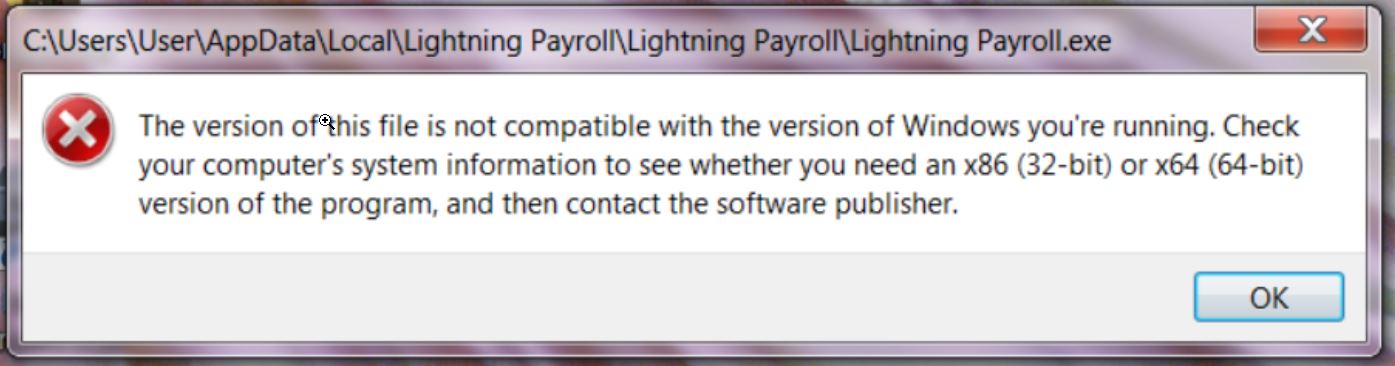
If reinstalling does not fix the issue, your operating system may be outdated. On Windows this typically causes DLL errors at startup; on Mac the app icon bounces in the dock without opening.
Lightning Payroll supports Windows 8.1 and above, and macOS 10.14 (Mojave) and above. If you are running an older version of Windows or macOS you will need to upgrade your operating system to use the current version of Lightning Payroll.
Disclaimer: Legacy versions of Lightning Payroll are no longer receiving updates, including tax tables, bug fixes, or new features. These versions should not be used after June 2024. Please update your system to a supported version, or switch to Lightning Payroll Online for continued support.
Windows Startup Issue ÔÇö User Account Privileges
Some Windows users encounter issues opening Lightning Payroll due to insufficient user account privileges. Lightning Payroll requires Administrator privileges to function fully.
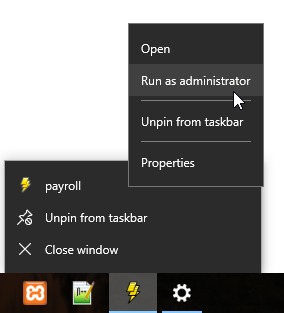
Before reinstalling, try running Lightning Payroll as Administrator. Right-click the Lightning Payroll shortcut on your desktop or taskbar and select Run as Administrator. On Windows 10 and 11 you may need to right-click the shortcut, then right-click Lightning Payroll within the submenu before the option appears.