


Answer
Lightning Payroll supports importing hours, leave, and allowances from a CSV file. This updates your employees' pays for the selected pay run. The import is accessed from the Pays area ÔÇö not from the Rosters screen's Import/Manage Shifts menu item, which opens the timeclock sync dialog instead.
In the Desktop App
- Open the Pays screen and select the pay run you want to import into.
- Click the action menu and choose Import/Manage Time And Attendance Data. You can also reach this from the Rosters screen via the same menu item.
- On the Time & Attendance Format page, select Lightning Payroll (Web App CSV/JSON Format) and click Next.
- Set the Import Format to CSV (Basic), choose your Employee Identifier (Employee ID or Employee Number), and optionally enter a Default Pay Department.
- Set the Processed/Paid Date for the imported pays, then browse for your CSV file and click Next.
- Review the preview. If there are errors, click Export Errors To CSV, fix the file, and re-import. Otherwise click Finish to apply the shifts.
Note: Importing will overwrite any existing rostered shifts for each affected employee in this pay run.
In the Online (Web/Mobile) App
- Go to Pays and open the pay run you want to import into.
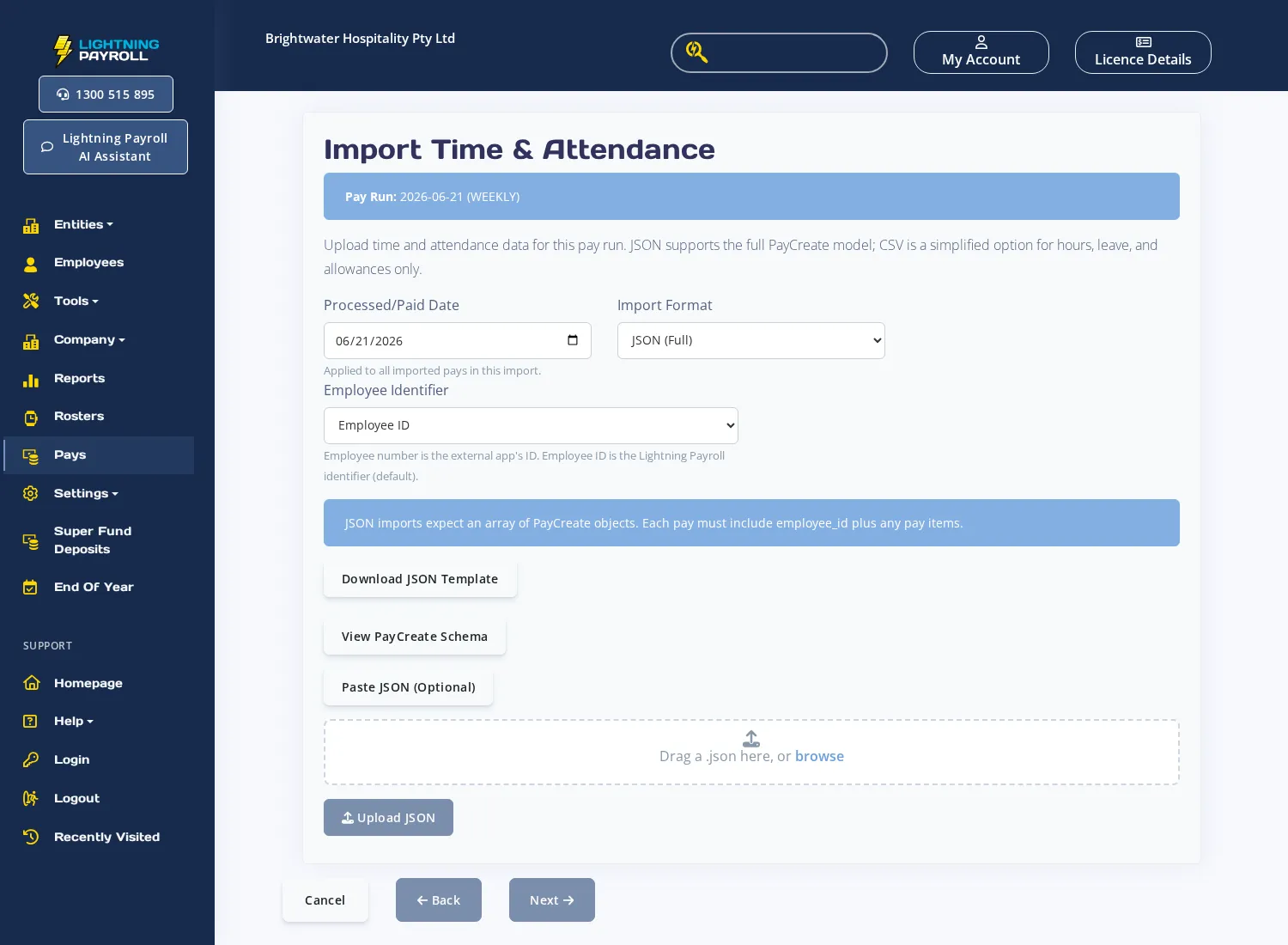
- From the action menu, choose Import Pay Data (JSON/CSV).
- Set the Import Format to CSV (Basic) and choose an Employee Identifier (Employee Number or Employee ID).
- Optionally enter a Default Pay Department to apply to all rows that do not include one.
- Set the Processed/Paid Date (required) ÔÇö this date is applied to all pays created by the import.
- Click Download CSV Template to get a correctly formatted starter file, or upload your own CSV file.
- Click Upload CSV to proceed to the review step. Any row-level errors are shown before the import is committed.
- If there are no issues, click Finish to create the pays.
CSV Format
The CSV must include a header row. Column names are flexible ÔÇö common alternatives are recognised automatically. The core required columns are:
- employee_id or employee_number ÔÇö identifies the employee (must match the identifier type you selected)
- item_type ÔÇö the type of pay item: hours, leave, or allowance
- description ÔÇö the pay item name as it appears in Lightning Payroll
Additional columns required per row type:
- Hours rows: value (number of hours), and either rate (dollar rate) or multiplier (e.g. 1.5 for time-and-a-half). units defaults to hours if omitted.
- Leave rows: value (hours), leave_type (the leave balance name), date (YYYY-MM-DD format).
- Allowance rows: amount (dollar amount), allowance_category (the STP category code for the allowance).
For a ready-to-use template with all supported columns, use the Download CSV Template button in the online app, or refer to the export file produced by the desktop wizard.

