


Answer
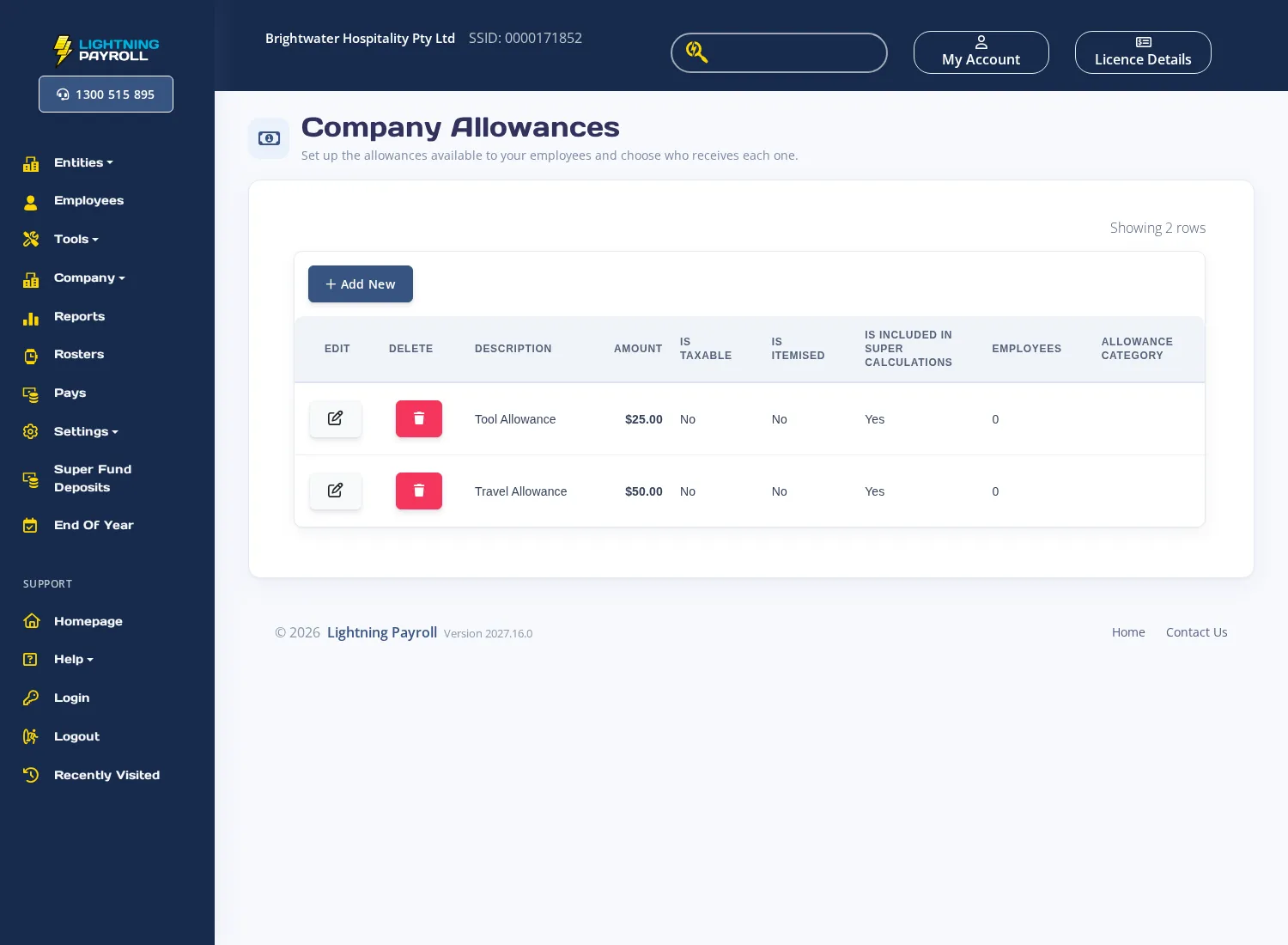
Company-wide allowances let you define a common allowance once and share it across multiple employees, rather than adding the same allowance to each employee individually.
In the desktop app
- Go to Company >> Allowances.
- Click Edit allowances and use the add button to create a new allowance. Enter a description, amount, and configure whether the allowance is taxable. On AU companies you can also set whether it is itemised for STP purposes, whether it is included in superannuation calculations, and select an allowance category.
- Once an allowance is saved, select it in the list and click Edit employees to open the employee selection wizard. Choose the employees who should receive this allowance and confirm.
- To remove an allowance from the company, select it and delete it. An allowance cannot be deleted while employees are still assigned to it ÔÇö remove those employees first.
In the online (web/mobile) app
- Go to Company >> Allowances.
- Click the add row button in the Company Allowances table to open the allowance form.
- Fill in the fields:
- Description ÔÇö a unique name for the allowance (required).
- Amount ÔÇö the default dollar amount per pay.
- Is Taxable? ÔÇö whether tax is withheld on this allowance.
- Is Itemised? (AU only) ÔÇö tick to report the allowance separately in STP submissions.
- Included In Super Calculations? (AU only) ÔÇö whether the allowance forms part of ordinary time earnings for super.
- Auto Apply To Pay? ÔÇö automatically include this allowance on new pays for assigned employees.
- Allowance Category (AU only) ÔÇö select the ATO category that best describes the allowance (for example, Cents per KM, Overtime Meals, Tools, or Other).
- Employees ÔÇö select one or more employees to assign the allowance to.
- Save the allowance. It will appear in the table showing how many employees it is assigned to.
To add a company-wide allowance to an individual employee's record directly, go to Employees >> Allowances/Deductions >> Allowances and use Add Company Allowances. For more on entering allowances for individual employees, see How Do I Enter Allowances?

