


Answer
To set up a recurring deduction for an employee in the online (web/mobile) app, navigate to the Employees section, select the employee from the list, then go to Allowances/Deductions >> Deductions. The page heading reads Deductions with the subtitle "Set up recurring deductions to take from this employee's pay."
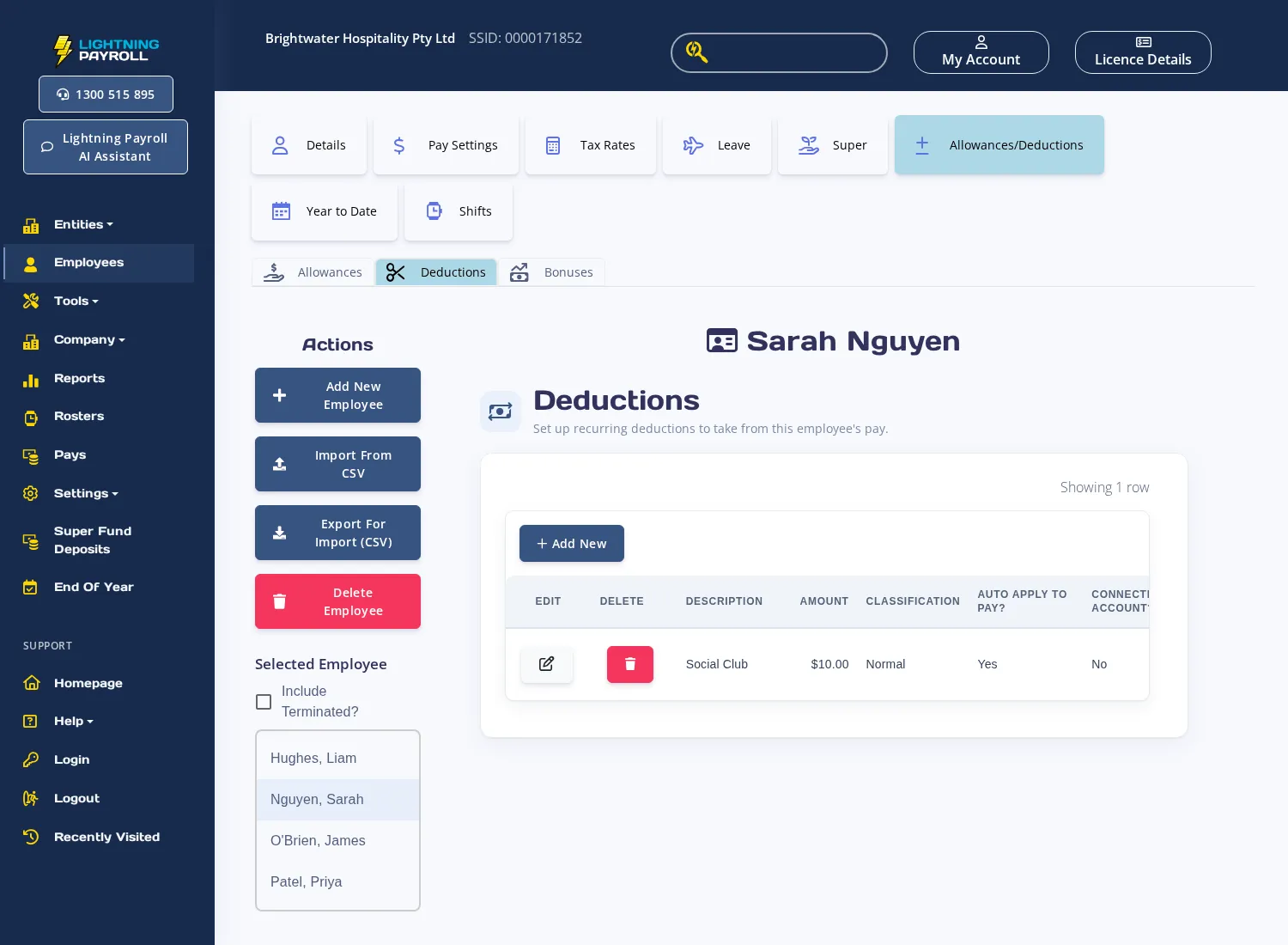
Click the add button in the table to create a new deduction. Fill in the following fields:
- Description — a name for the deduction (required, must be unique for the employee).
- Amount — the fixed dollar amount to deduct each pay. This field is hidden when Is Percentage? is ticked.
- Classification (AU only) — select the type: Normal, Union/Association Fees, Charity/Workplace Giving, Child Support Garnishee, or Child Support Deduction. Child support classifications trigger a protected earnings check when the pay is processed.
- Auto Apply to Pay? — tick this to have the deduction added automatically to every new pay run for this employee.
- Bank Acc. (optional) — link the deduction to one of the employee's secondary bank accounts so the amount is included as a separate line in the direct entry banking file.
- Is Percentage? — tick to enter the deduction as a percentage of pay instead of a fixed dollar amount.
- Percentage and % Based On — visible when Is Percentage? is ticked. Choose whether the percentage is calculated on Gross or Net pay.
- Max Applications, Max Total Amount, and Limit Start Date — optional fields that automatically stop the deduction after a set number of pay runs or once a cumulative dollar cap is reached. See How Do I Set Up An Employee Deduction With Automatic Limits? for details.
Click Save in the deduction form to add the row, then the table saves automatically. The deduction will appear on the next pay run for this employee.

Editing a deduction on an individual pay
Once a pay run is created, you can view or adjust the deduction amount directly on the pay. Open the pay from the Pays section and find the Deductions table within the pay editing screen. You can edit the amount for that pay without changing the employee's recurring deduction settings.
For setting up deductions in the desktop app, see How To Setup A Deduction?

