


Answer
This guide is for advanced users who need to reach the utility tools built into the Lightning Payroll desktop app. These tools help you manage your data and troubleshoot issues.
Opening the Utility Options
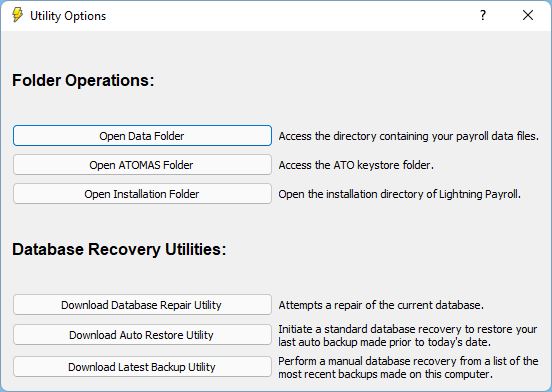
When Lightning Payroll desktop starts, a splash screen appears with the application logo. Click the small help (question mark) icon in the lower-left corner of the splash screen to open the hidden Utility Options dialog.

Folder Operations
From the Utility Options dialog you can open these folders:
- Open Data Folder: the directory containing your payroll data files.
- Open ATOMAS Folder: the ATO keystore folder.
- Open Installation Folder: the Lightning Payroll installation directory.
Database Recovery Utilities
If you run into database problems, these tools can help with recovery and repair:
- Download Database Repair Utility: attempts a repair of the current database.
- Download Auto Restore Utility: restores your last automatic backup made prior to today.
- Manual Recovery Tool: lets you recover from a list of the most recent backups made on this computer.
Caution: these tools are intended for advanced users. Incorrect use may lead to data loss, so make sure you understand each function before proceeding.

