


Answer
By default, Lightning Payroll opens up to look like it did when it was last closed down. If you share data between two computers (as each subscription allows) you will need to be responsible with managing your data's continuity. If your colleague does some work and you fail to restore their data before continuing, it may get lost. Please see below for a demonstration of how this problem may arise.
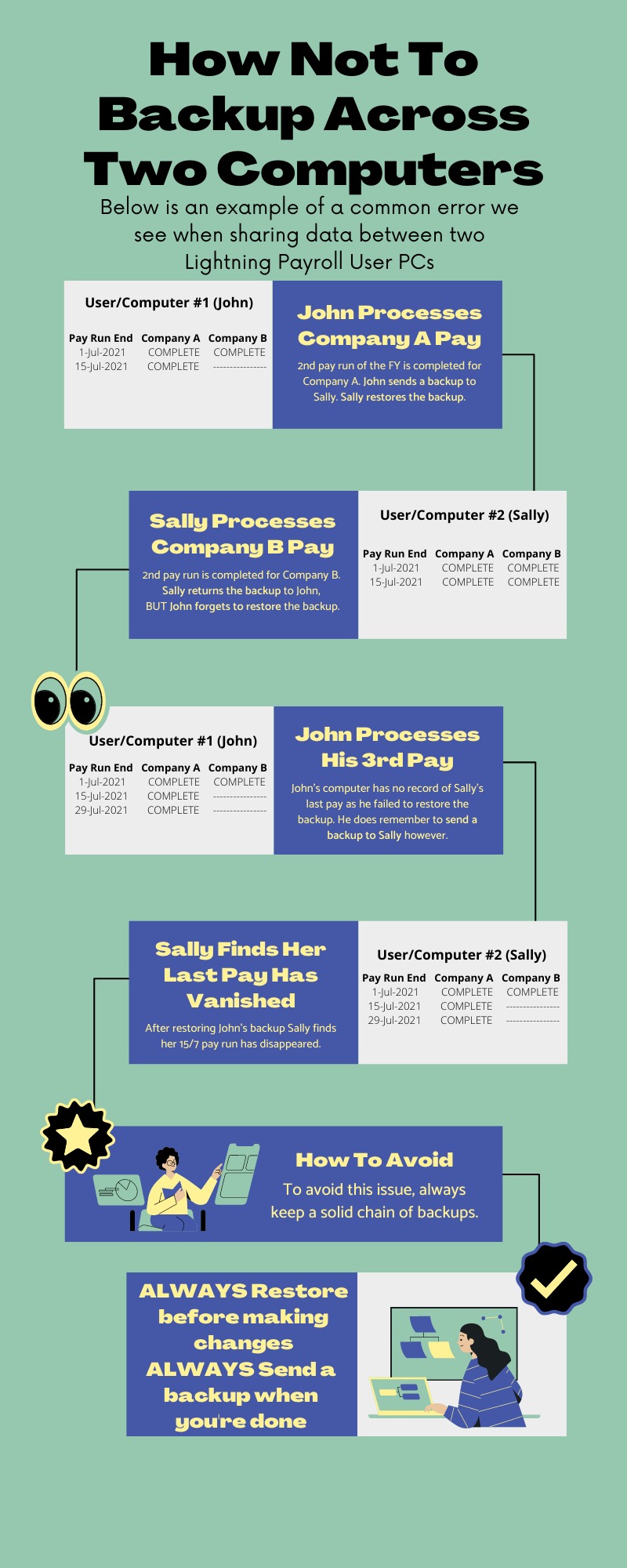
How to Avoid Losing Data
The safest way to share payroll data across two computers is to use the Online Backups feature, which keeps a copy of your data on Lightning Payroll's secure servers and lets both computers stay in sync. In the desktop app, go to Tools >> Online Backups and enable Automatically backup every 7 days?. On each computer, also enable the Prompt when a more recent backup is available? option ÔÇö this way the software will warn you before you work on older data.
Follow this discipline when moving between computers:
- Before finishing work on Computer A, open Tools >> Online Backups and click Send Backup to push your latest data to the cloud.
- When you start work on Computer B, open Tools >> Online Backups and restore the most recent backup so you are always working from the latest copy.
- Repeat this process every time you switch computers.
For full instructions on registering and configuring online backups, see How Can I Set Up Online Backups?.
If you have already restored a backup and realised it was the wrong one, the online app includes a Revert Last Restored Backup option under Tools that can roll your data back to the state it was in immediately before the restore.

