


Answer
If you have misplaced an ABA file, forgotten to upload it, or want to review what was included in a previous submission, you can regenerate the file at any time.
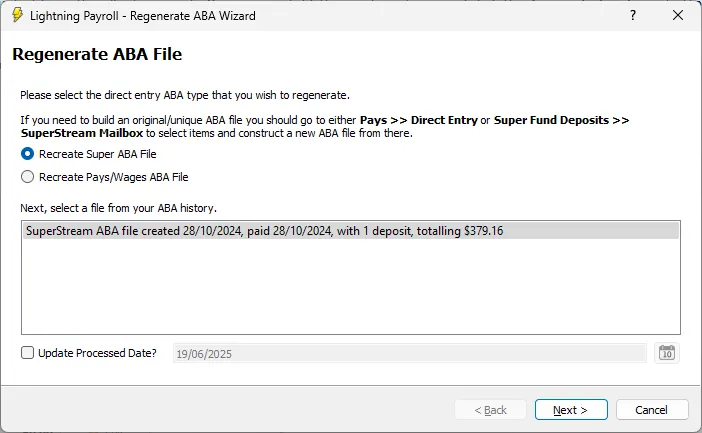
In the Desktop App
- Go to the Tools menu and select Regenerate Banking File.
- Select the type of file to regenerate:
- Recreate Super Banking File ÔÇö for SuperStream contributions paid to super fund bank accounts.
- Recreate Pays/Wages Banking File ÔÇö for payments made to employee bank accounts.
- Choose the relevant file from your ABA history.
- Optionally, tick Update Processing Date? if you want the regenerated file to reflect a different processing date.
- Click Next and follow the prompts to preview and download the ABA file.
In the Online (Web/Mobile) App
The regenerate ABA tool is available for Australian companies in the online app.
- Open the Tools section from the main navigation.
- Select Regenerate ABA File/s.
- Choose the type of file using the radio buttons:
- Show Super ABA Files ÔÇö for super fund contribution payments.
- Show Pays/Wages ABA Files ÔÇö for employee wage payments.
- Select a file from the history list that appears.
- Optionally, tick Update Processing Date? to change the processing date on the regenerated file.
- Click Next to preview the payments, then proceed to download the ABA file.

The regenerated file can be uploaded to your online banking portal in the same way as a newly created ABA file.
For help creating an original ABA file, see: How do I make payments using a direct entry banking file?

