


Answer
If you need to make a back payment to an employee, this can be done as follows.
Edit the appropriate pay run for the employee under Pays, then click Edit Pay/s.
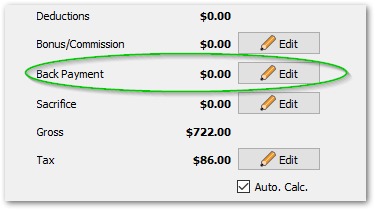
Enter a back payment by clicking the Edit button beside Back Payment.
You can then enter a description and select a tax method from the available ATO options. The date fields are only enabled when relevant.
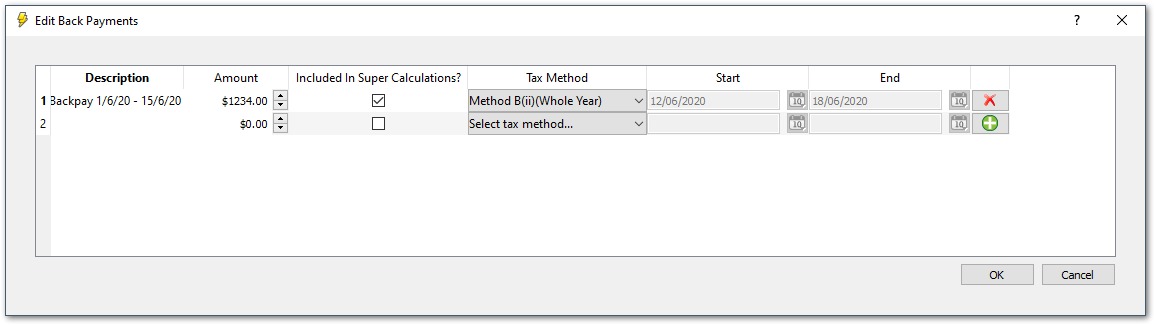
Choosing a tax method (AU)
When you add a back payment you must choose how Lightning Payroll calculates the withholding on it. The options follow the ATO's Schedule 5 — tax table for back payments, commissions, bonuses and similar payments:
- As normal earnings — the back payment is added to the pay's ordinary gross and taxed in that one pay at the employee's standard rate for the period. No averaging is applied. This generally withholds the most.
- Method A (Whole Year) — spreads the back payment across the whole financial year (52, 26 or 12 periods) and works out the extra tax it adds on top of the employee's current-period earnings.
- Method A (Use Date Range) — the same as above, but spreads the amount across only the number of pay periods in the date range you enter.
- Method B (i) (Use Date Range) — for a back payment that relates to a specific earlier period in the current financial year. Enter the start and end dates of the period it covers.
- Method B (ii) (Whole Year) — for a back payment where the period it relates to cannot be identified. The amount is spread across the whole year using the employee's average normal earnings to date as the base.
When a date-range method is selected, the Start Date and End Date fields become active. Both dates must be in the past and the start date must be before the end date.
A negative back payment (for example, to recover an overpayment) requires the As normal earnings tax method.
For a detailed explanation of how each method calculates withholding — including why a method can produce $0 tax — see Where Can I Enter a Bonus or Other Irregular Gross Payment?, which covers the same Schedule 5 logic.

