


Answer
There are three different ways to add a note to your employees' payslips in Lightning Payroll.
Method 1: Individual Employee One-Off Payslip Note
In the desktop app: Open the pay for the employee, then click Payslip Info in the toolbar. Enter the note in the Payslip Note field. This note applies to that pay only.
In the online (web/mobile) app: Open the pay for the employee and select the Payslip Info tab. Enter the text in the Payslip Note field, then save. This note applies to that pay only.
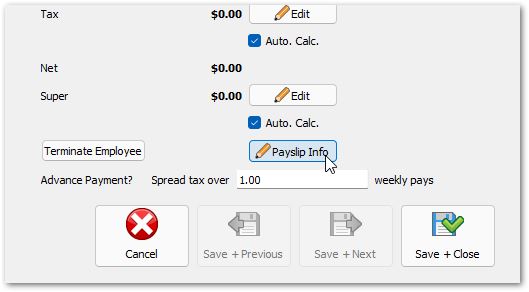
Method 2: Individual Employee Ongoing Payslip Note
In the desktop app: Go to Employees >> Pay Settings >> Payslip Options >> Payslip Note. The note saved here appears on every payslip for that employee until you remove it.
In the online (web/mobile) app: Open the employee record and navigate to Pay Settings >> Payslip Options. Enter the text in the Payslip note (ongoing) field and save. The note will appear on every future payslip for that employee.
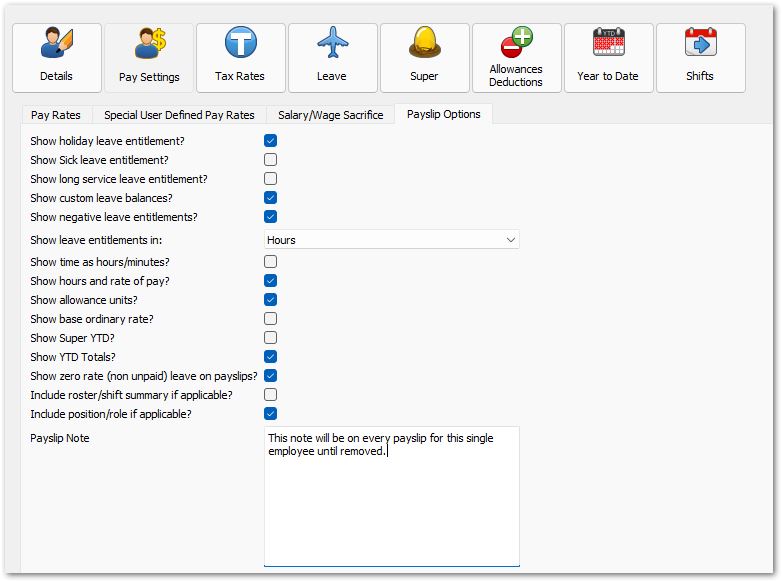
Method 3: All Employees Within A Pay Run
In the desktop app: From the Pays screen, open the Payslips menu and choose This Pay Run (or Multiple Pay Runs). On the first page of the Payslip Wizard, enter your note in the Add the following to the payslip (optional) field. The note is applied to all payslips generated in that run.
In the online (web/mobile) app: From the Pays screen, click the Payslips button and choose This Pay Run or Multiple Pay Runs. On the Create Payslips step of the wizard, enter your note in the Add the following note to all the generated payslips (optional) field.


