Answer
You can set up additional pay rates for employees in Lightning Payroll either individually or in groups.
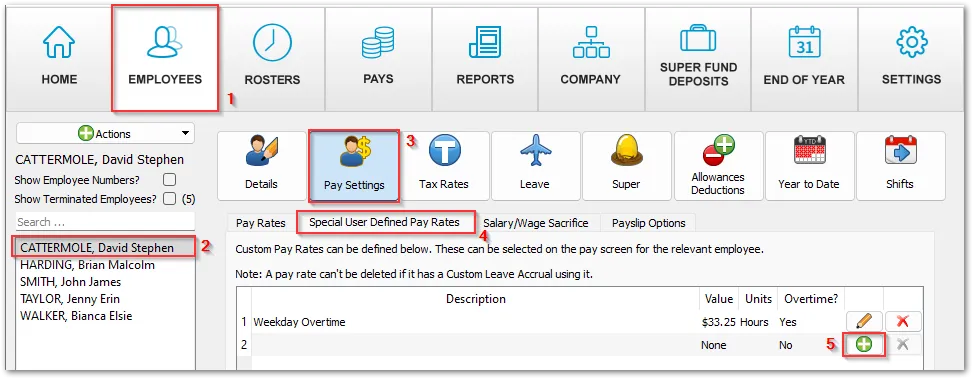
To set up a pay rate for a single employee, go to Employees >> select the relevant employee >> Pay Settings >> Special User Defined Pay Rates and add the rate. This pay rate will then be available from the drop-down list of pay rates in the Edit Pay/s screen.
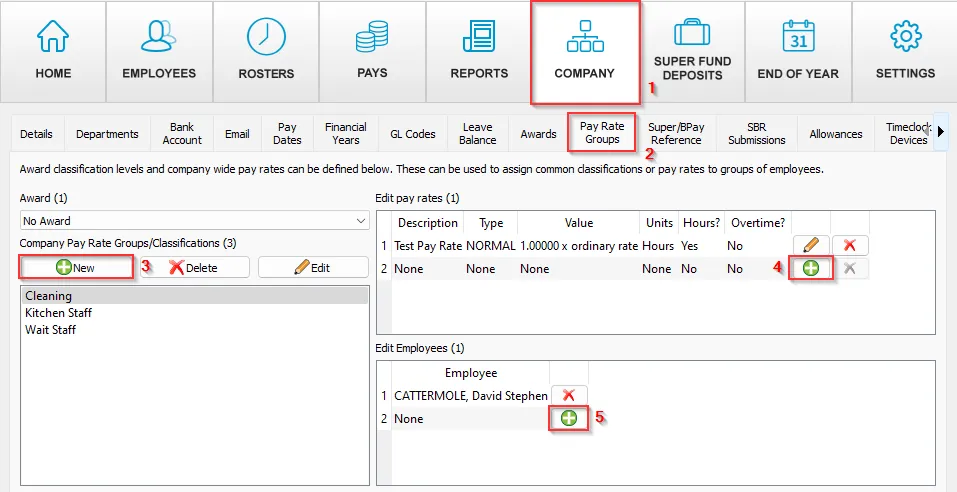
To set up a pay rate that can be applied to a group of employees, go to Company >> Pay Rate Groups and click New to create a group. Add the pay rate, then use the Edit Employees section to assign that group to the relevant employees. This pay rate will then be available from the drop-down list of pay rates in the Edit Pay/s screen for every employee you have added to the group.