Answer
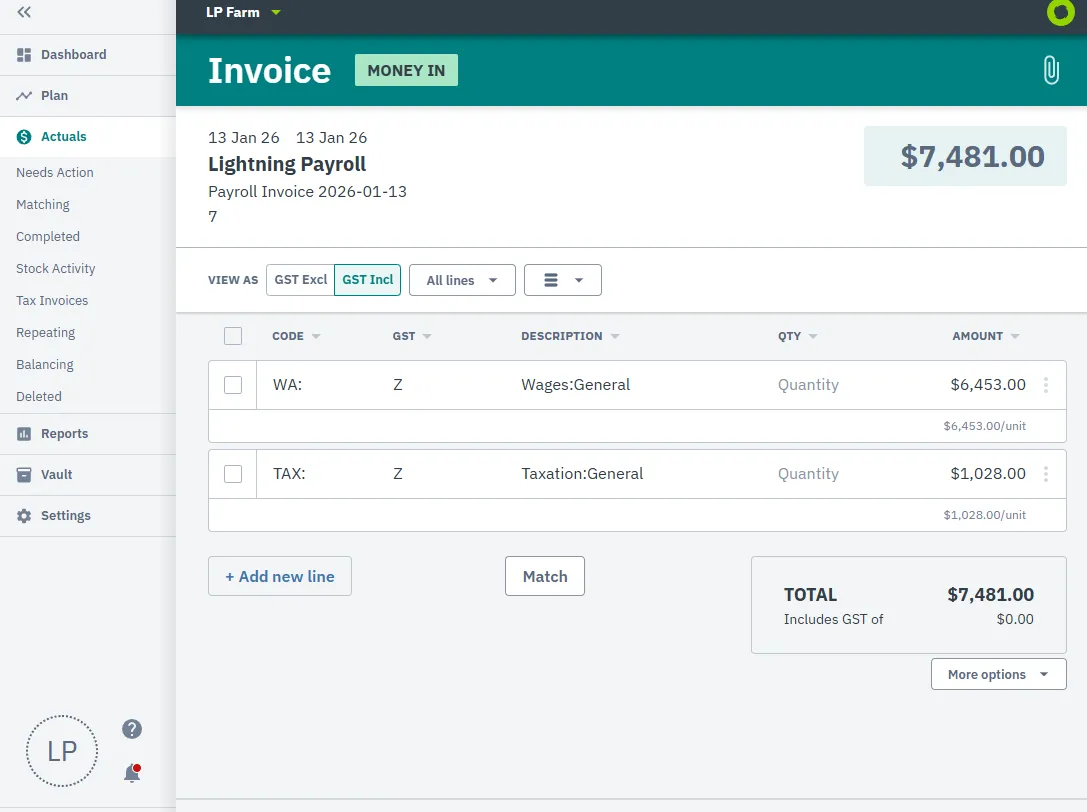
Lightning Payroll integrates with Farm Focus to allow you to export payroll details as invoices directly into your farm management system. This feature is similar to our Xero and MYOB general ledger exports and is available with the Farm Focus add-on.
To use this integration, you will need to purchase the Farm Focus add-on as part of your subscription upgrade or when purchasing a new subscription.
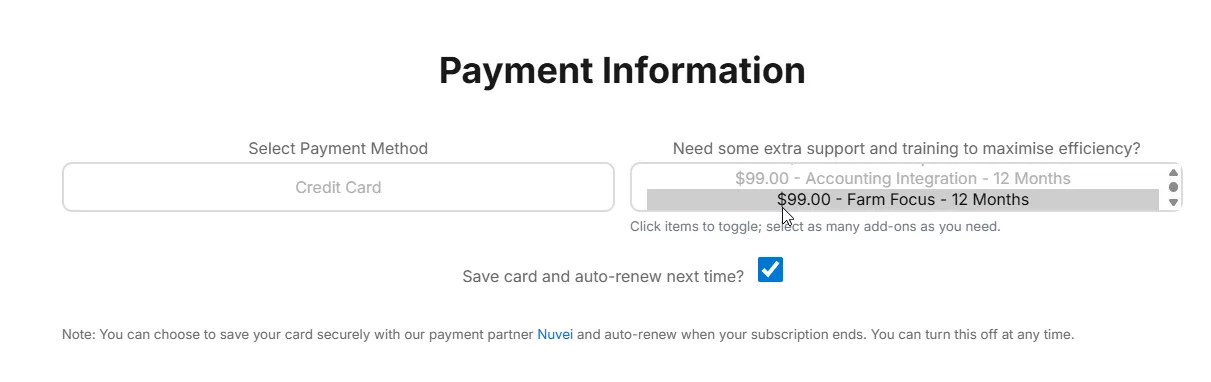
Once added, the integration features will be unlocked. The first step is to configure your general ledger code mappings.
Setting Up GL Code Mapping
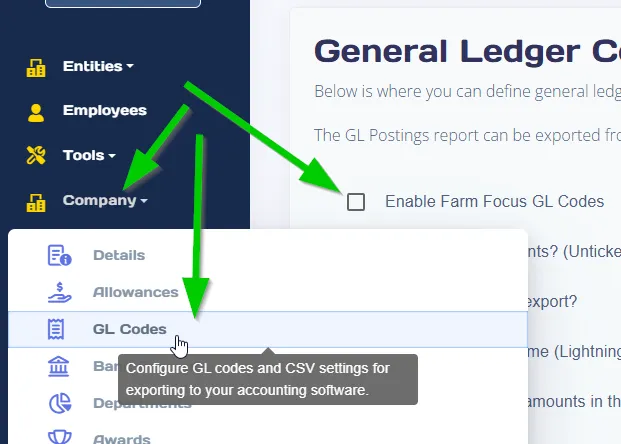
In the desktop app: go to Company >> GL Codes.
In the online (web/mobile) app: go to Company >> GL Codes.
- Tick the box for Enable Farm Focus GL Codes.
- Click Download Farm Focus Codes to import your account codes.
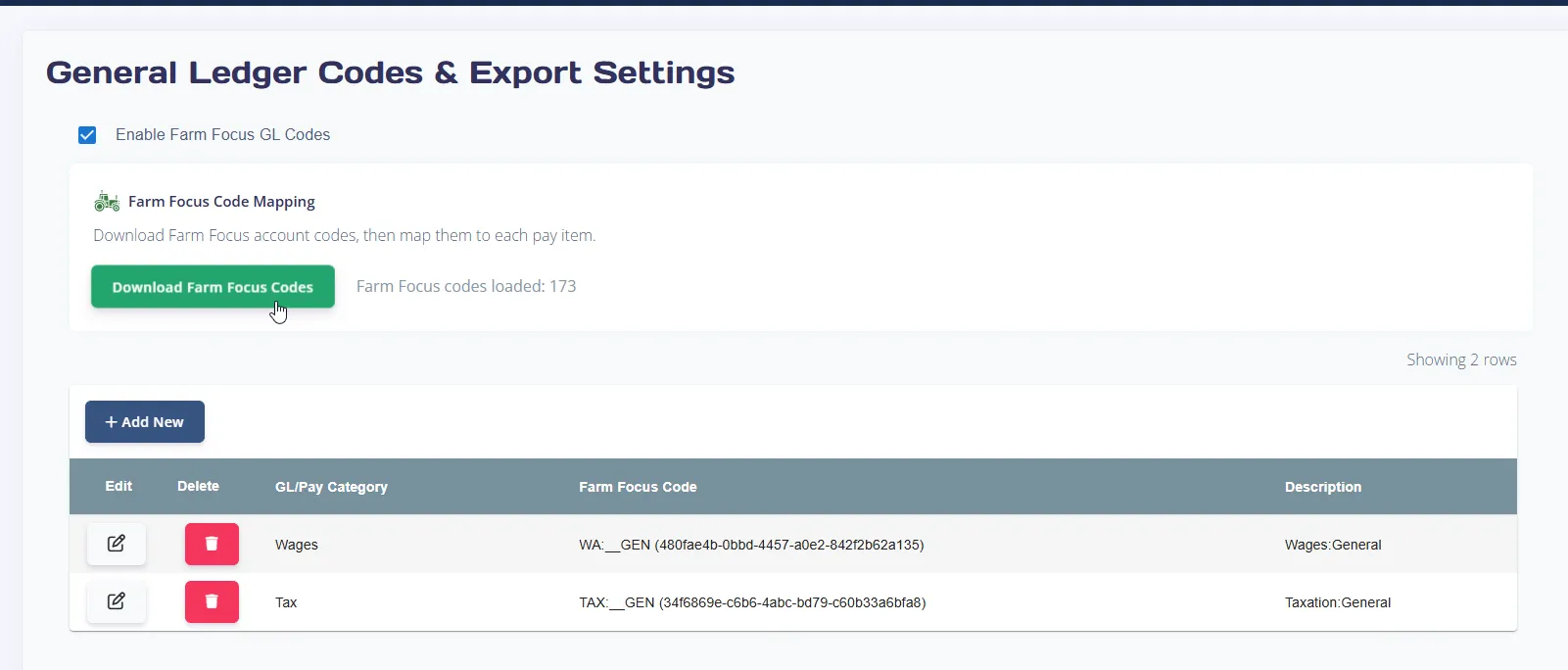
You can now map pay items to the appropriate Farm Focus codes. Use the table to add, edit or delete mappings. Click the delete icon to remove incorrect or unnecessary mappings.
Submitting Pays to Farm Focus
In the desktop app:
- Open the Pays tab and open the reports/export menu.
- Click Export to Farm Focus.
- If not already connected, click Connect to Farm Focus and log in to authorise your company.
In the online (web/mobile) app:
- Navigate to the Pays screen.
- Click the Reports button.
- Select Farm Focus Export from the menu.
- If not already connected, click Connect to Farm Focus and log in to authorise your company.
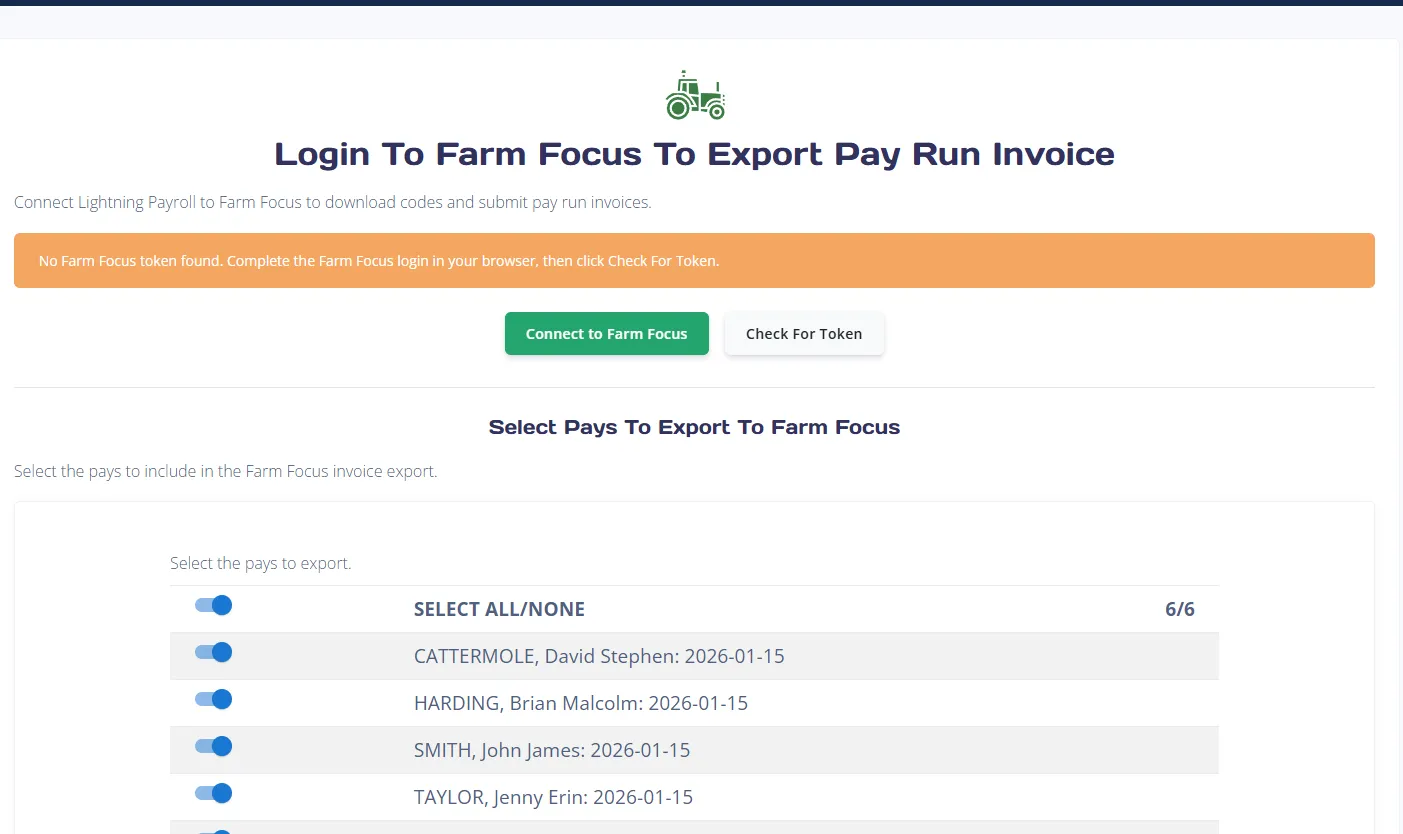
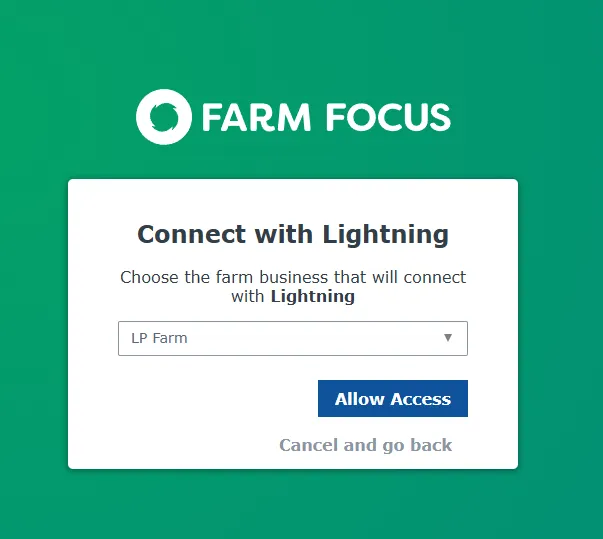
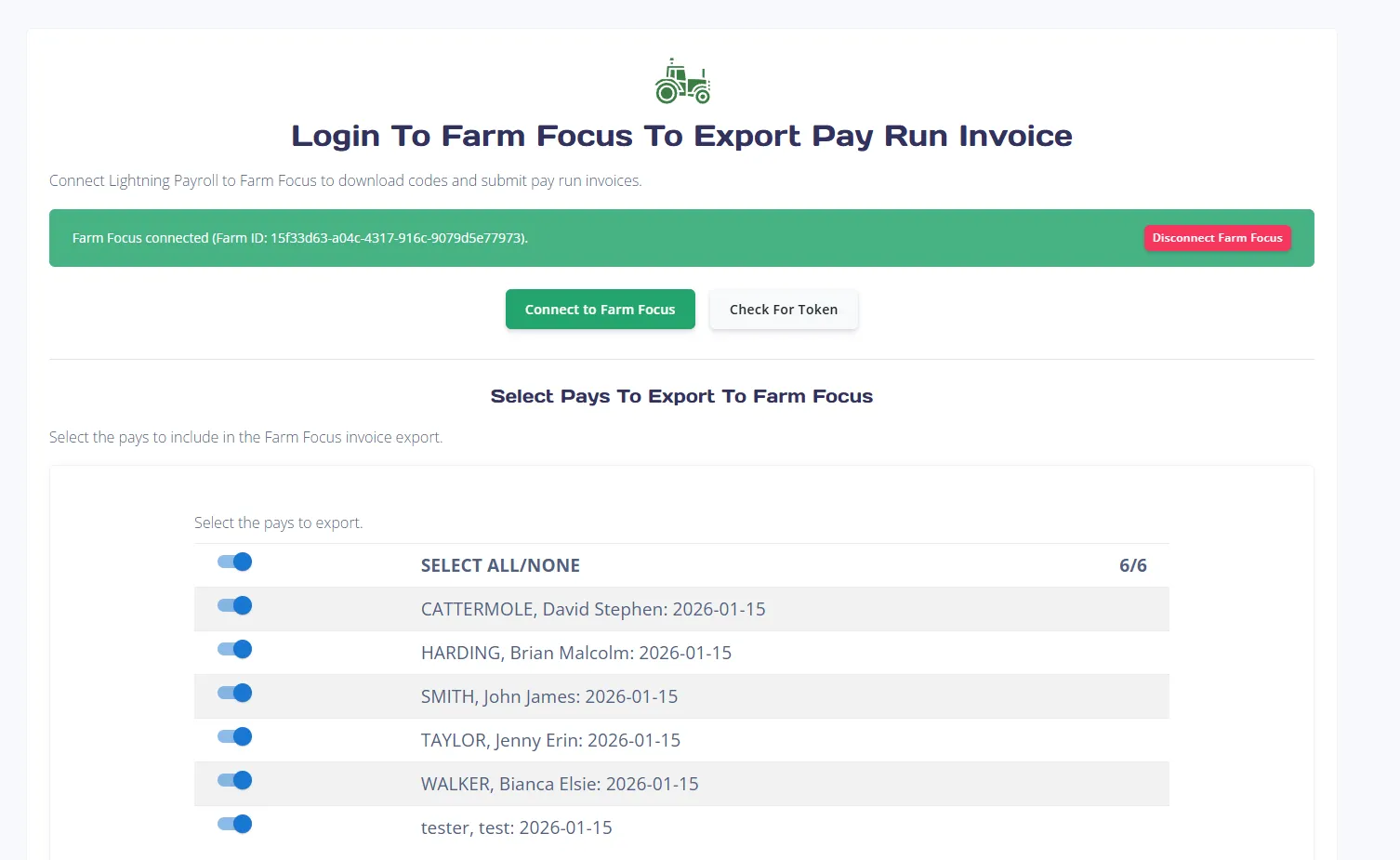
Once connected, select the pays you wish to submit and click Next.
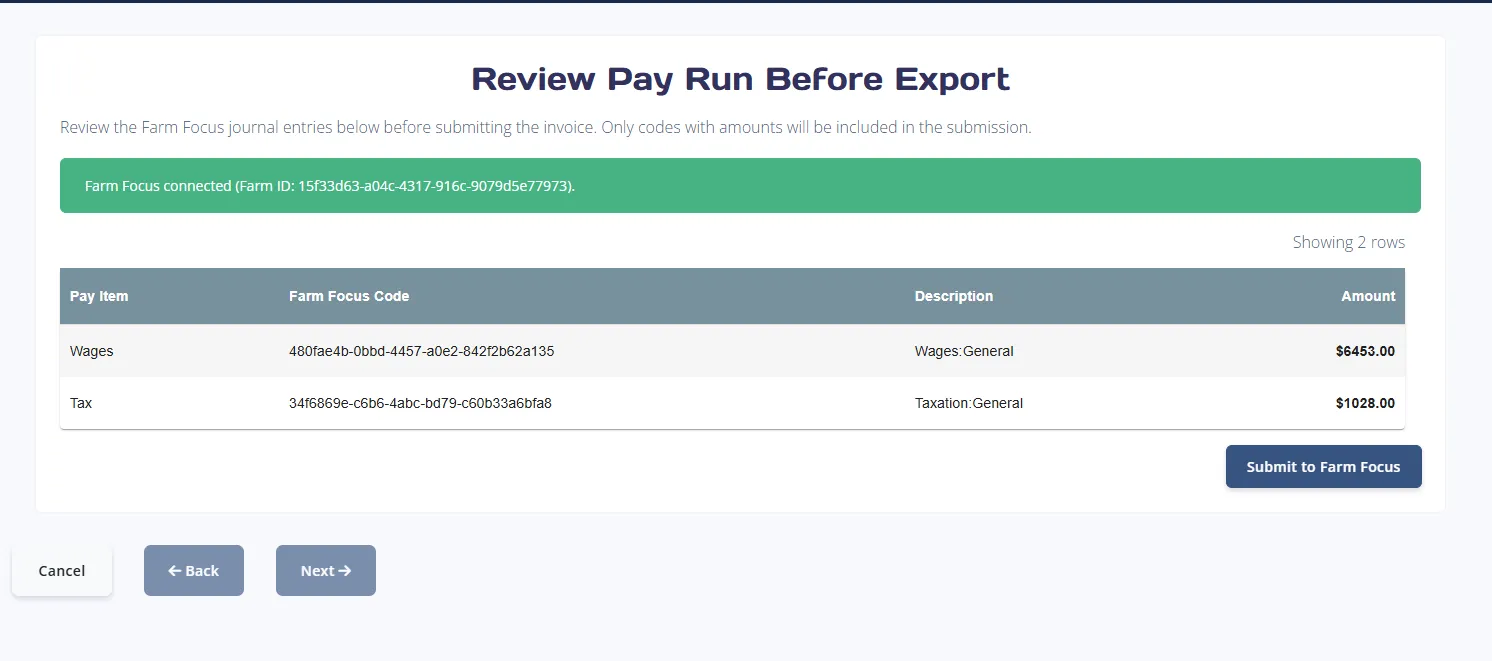
- Review totals against your mapped account codes on the next screen.
- Click Submit to Farm Focus once you are ready to proceed.
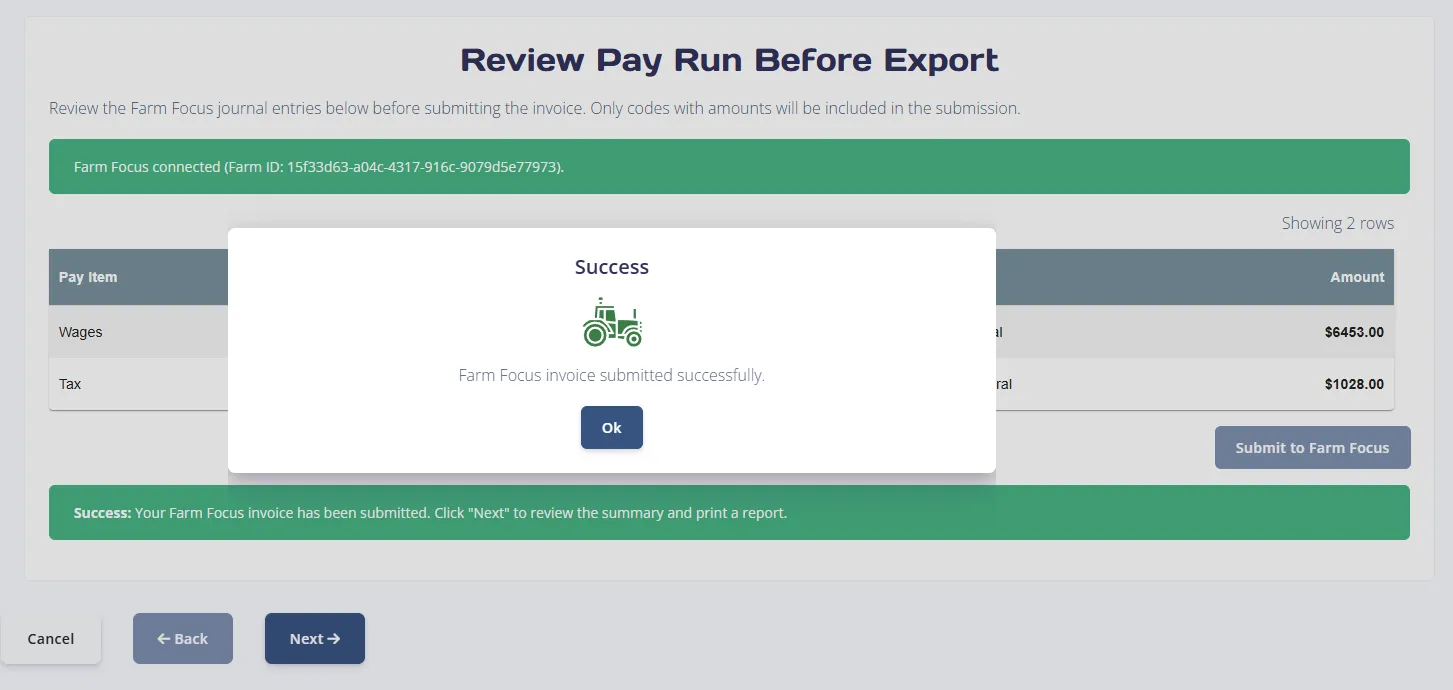
If you wish to disconnect at any point, click Disconnect Farm Focus.
View Summary and Records
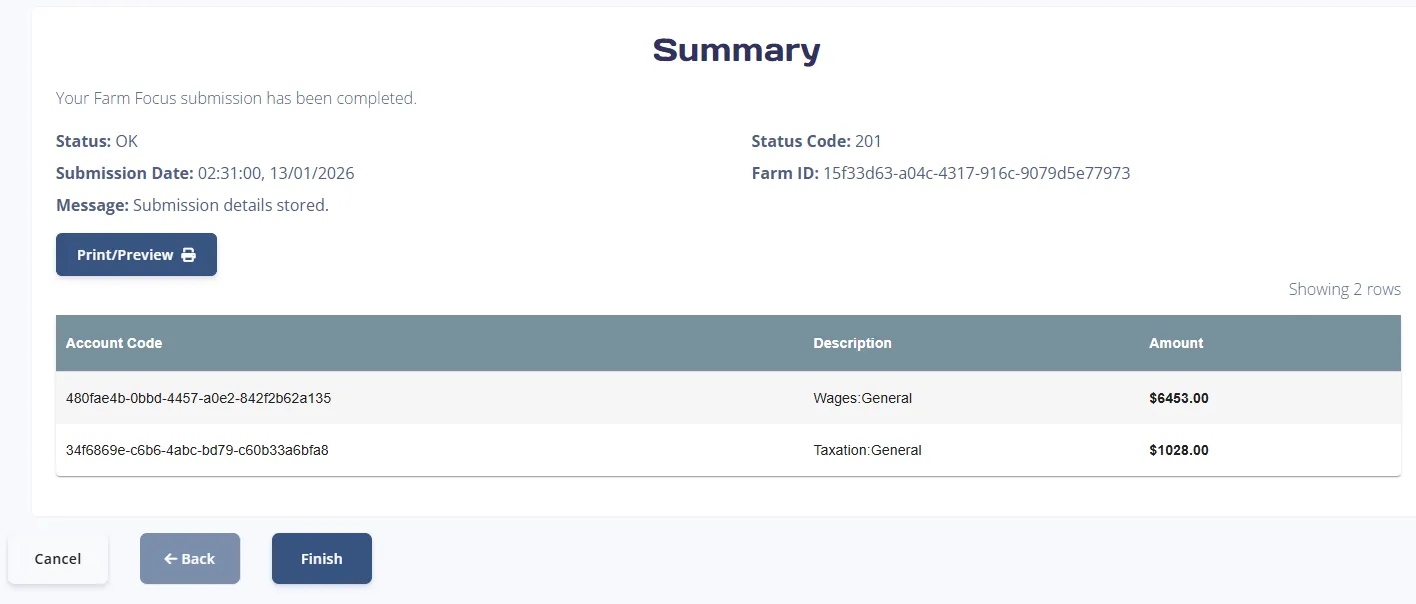
After submission, proceed to the summary screen to view a breakdown of what was sent. You can also generate and save a PDF report for your records.
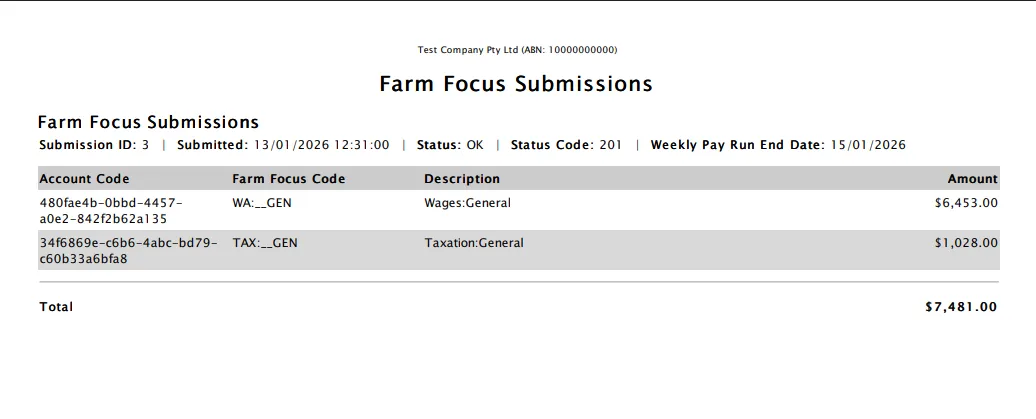
The submitted payroll amounts will now appear in Farm Focus under the Actuals section.