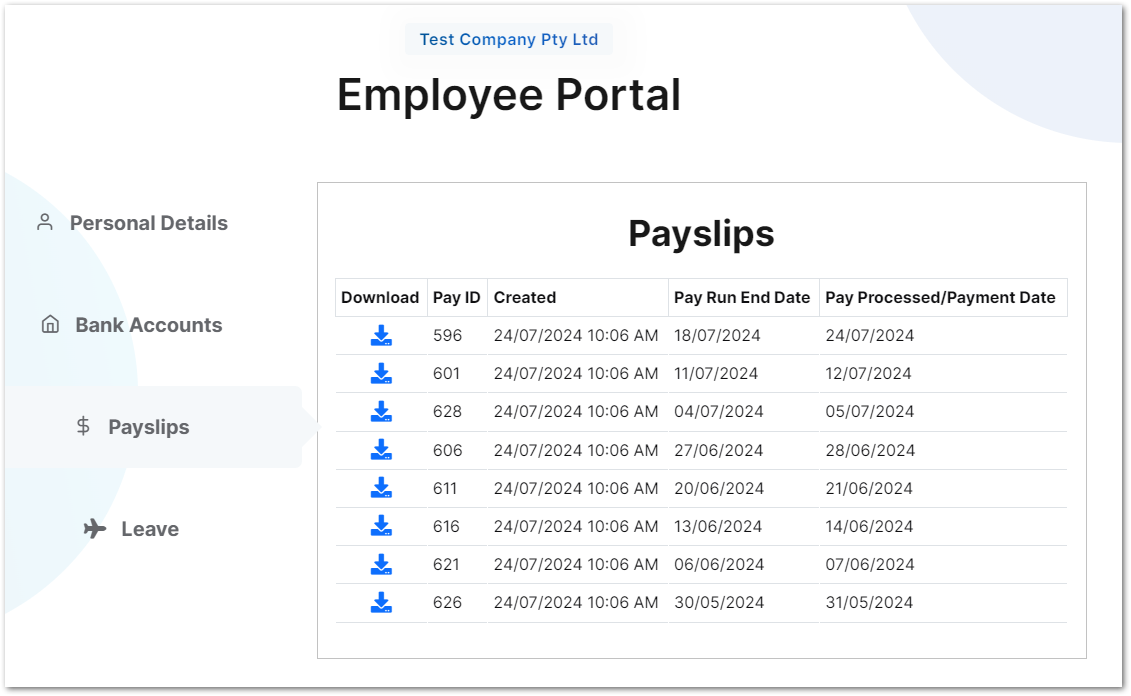
Answer
You can allow employees to access their payslips via the Lightning Payroll online employee portal. The steps below cover the desktop app; online app users can configure the same settings from Employees >> Details >> Online Portal and click Refresh Employee Portal to save.
To activate payslips for an employee in the desktop app, go to Employees >> Details >> Online Portal and tick Allow Employee to View Their Payslips? You will also need to tick Activate This Employee's Online Portal?
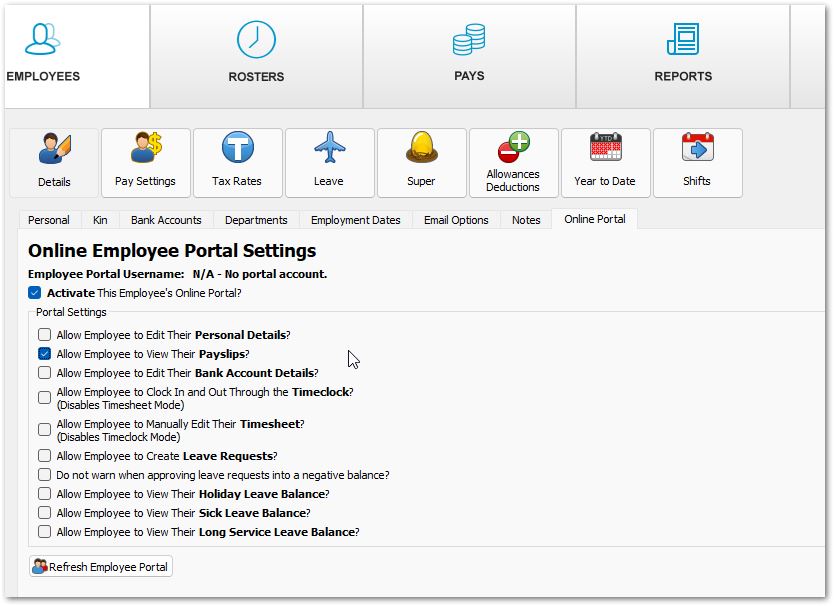
Click Refresh Employee Portal to save the changes. Once payslips are activated, the program will automatically upload each newly completed pay as a payslip on app shutdown.
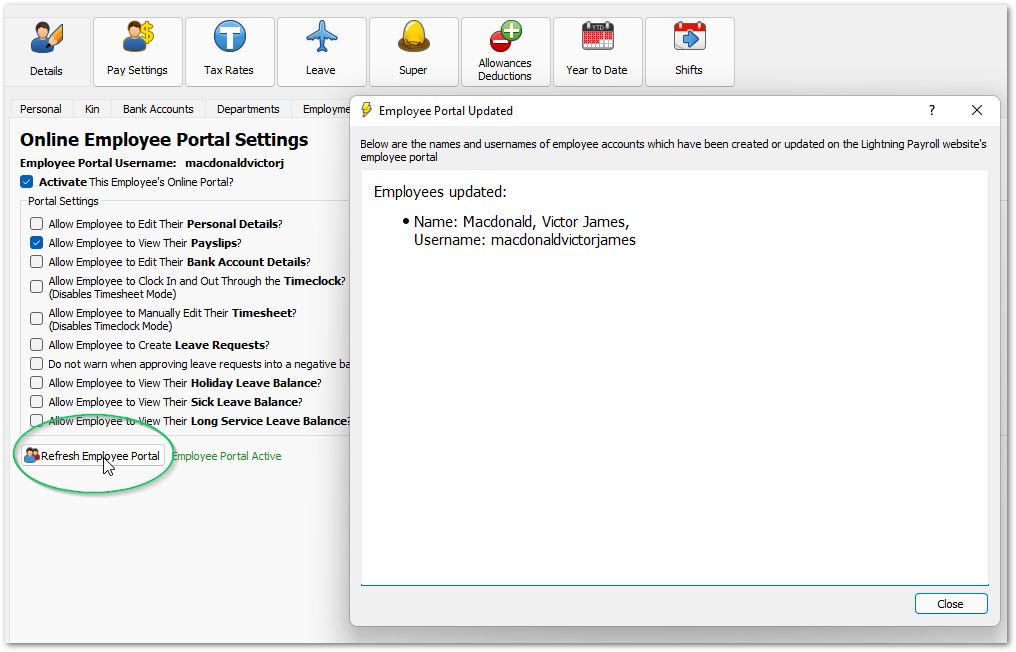
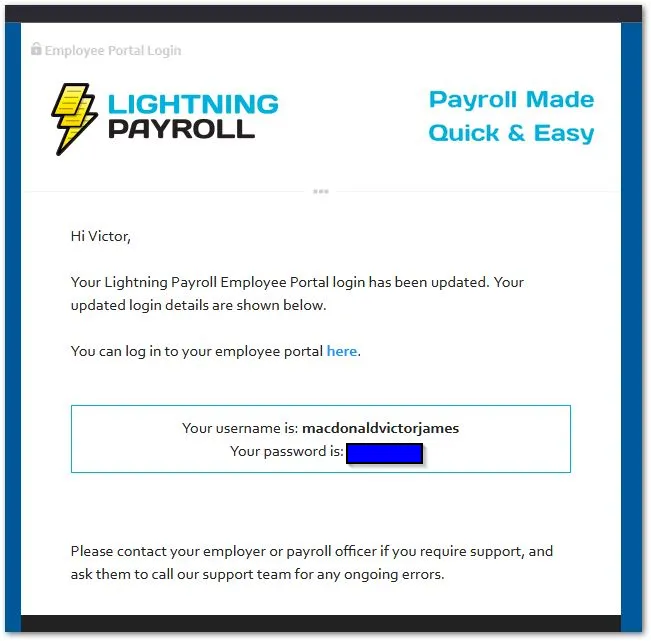
When the employee portal is activated for the first time (or if an employee's name changes), a new username and password will be generated and emailed to the employee. This allows them to log in via the portal link at the top of the email.
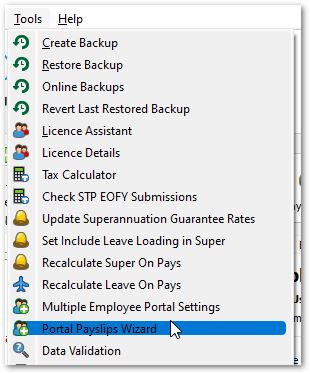
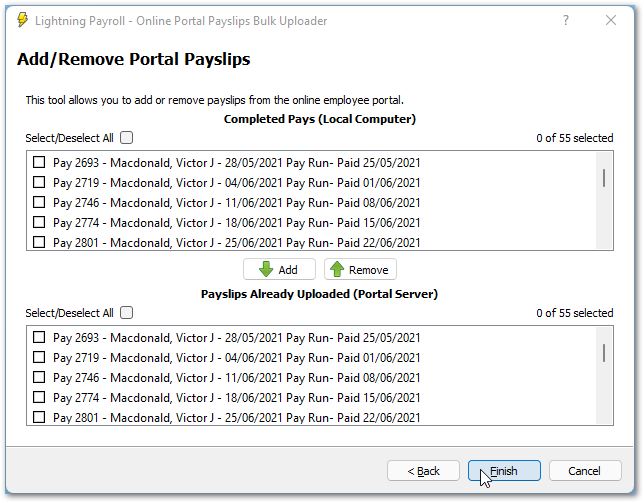
To add payslips for past periods, or to remove payslips from the portal, use the Portal Payslips Wizard found in the upper Tools menu.
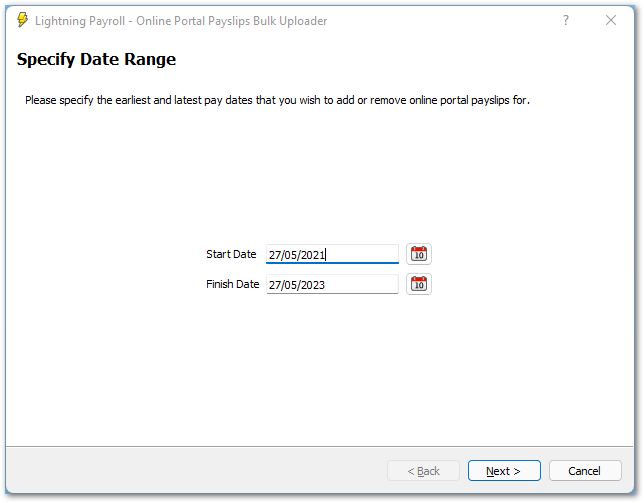
Specify the pay run date range you would like to manage payslips for.
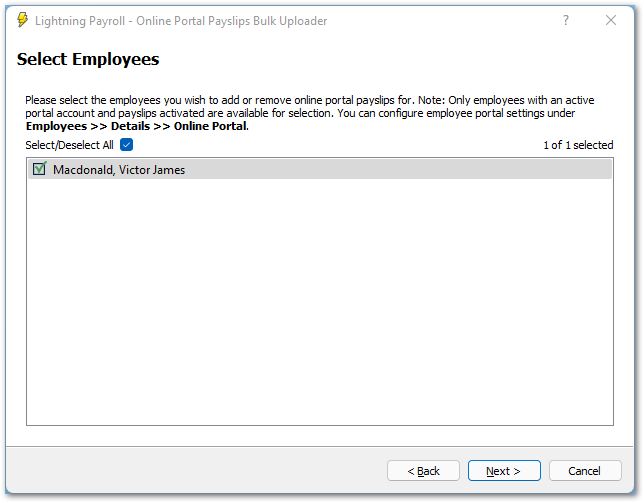
Select the employees whose payslips you would like to manage. Only employees with active portal accounts and payslips allowed will be visible.
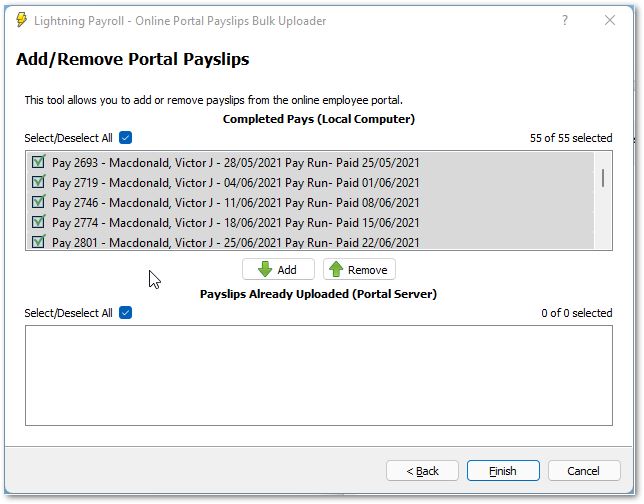
Select the pays you wish to add or remove, then click Finish to save the changes.
The employee can then access their payslips by logging into the online employee portal.