


Answer
The timeclock and portal sync feature downloads employee-entered shift data from the Lightning Payroll server and converts it into rostered shifts inside your company file, ready to flow through to pays.
Opening the Sync Window
In the desktop app: On either the Pays or Rosters screen, click Import/Manage Shifts to open the sync window directly. (The same area also offers Import/Manage Leave Requests and Import/Manage Time And Attendance Data.)
In the online (web/mobile) app: On the Roster Planner screen, click Timeclock/Portal Sync, then choose Import/Manage Shifts from the menu that appears. (The same menu also offers Import/Manage Leave Requests.)
What the Sync Window Does
- Shows eligible employee timeclock and timesheet entries for the currently selected pay period.
- Lets you filter, review, round, edit and then import those entries.
- On import, creates new rostered shifts or updates matching rostered shifts so your pays can absorb the correct hours when the pending pay is refreshed.
Before You Start
- Navigate to the exact pay run you want to process, then open the sync window. It only displays entries with a start date and time within this pay period's dates.
- Ensure staff are submitting shifts via:
How Shift Data Flows into a Pay
Lightning Payroll stores employee-entered shifts on the server as timeclock shifts. When you sync, these become rostered shifts in your payroll file, because pays always absorb hours from rostered shifts. This supports businesses who use rosters, timeclocks/timesheets, or both.
- Server timeclock shift >> Sync >> Create/Update rostered shift >> pending pay absorbs the rostered hours on refresh.
- If a matching rostered shift already exists (same employee, shift and start date), the import overwrites that rostered shift's values instead of creating a duplicate.
Tour of the Sync Window
The main table lists one row per employee shift and shows reported start, end and break times, any existing rostered times, and the paid duration you are about to import.
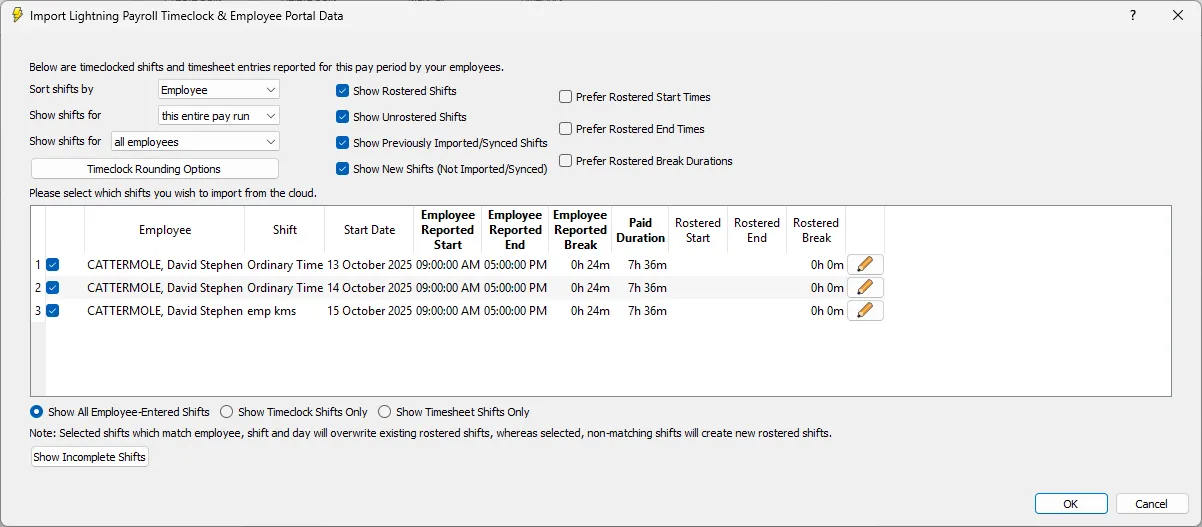
- Sorting and Date Filters (top left) ÔÇö Sort by employee or date, and choose whether to show entries for this entire pay run or a narrower range.
- Who to Show ÔÇö Display shifts for all employees or a specific employee.
- Visibility Toggles (upper middle/right):
- Show Rostered Shifts / Show Unrostered Shifts ÔÇö Include shifts that already have a matching roster row, as well as new ones that will create a roster row. Tick both to see everything.
- Show Previously Imported/Synced Shifts ÔÇö Useful for auditing what has already been brought in.
- Show New Shifts (Not Imported/Synced) ÔÇö Focus only on what still needs action.
- Prefer Rostered Start/End/Break ÔÇö Keep selected rostered values when importing a matching timeclock entry. See details below.
- Shift Source Filter (bottom left) ÔÇö Choose Show All Employee-Entered Shifts, or limit to Show Timeclock Shifts Only or Show Timesheet Shifts Only.
- Show Incomplete Shifts ÔÇö Opens a window listing any shifts that are still in progress (not yet clocked out).

Manually Editing a Shift
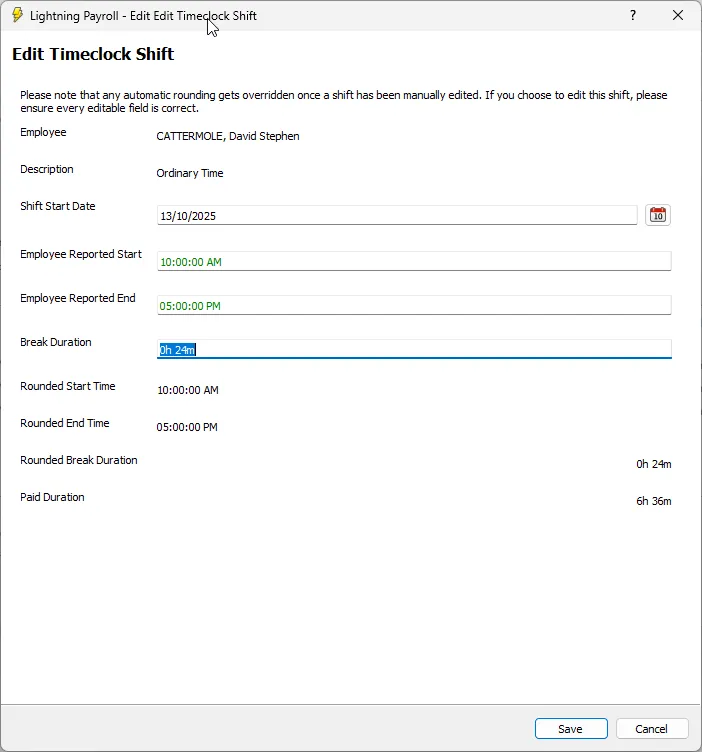
Click the pencil to correct any shift record that needs to change. Make your changes and save. This will not update the source server shift record, but will be used when creating or updating the rostered shift entry, which then flows through to pays.
Using Prefer Rostered Options
These options give you extra automation when you use pre-scheduled rosters as well as server-entered timeclock shifts. When a server shift matches a rostered shift (same employee, shift and start date and time), the import would normally overwrite the rostered values. Ticking any of the following will retain the chosen rostered field instead of replacing it:
- Prefer Rostered Start Times ÔÇö Keeps the rostered start time. Useful when staff clock in too early compared with the scheduled start. Optional sub-setting:
- In the desktop app: ...Only When Clocking-In Early ÔÇö Retains the rostered start only if the employee's reported start is earlier than rostered. If they clock in late, the reported start is used.
- In the online (web/mobile) app: ...But Only When Clocking-In Early ÔÇö same behaviour as above.
- Prefer Rostered End Times ÔÇö Keeps the rostered end time. Helpful when staff clock out later than planned. Optional sub-setting:
- In the desktop app: ...Only When Clocking-Out Late ÔÇö Retains the rostered end only if the employee's reported end is later than rostered. If they finish early, the reported end is used.
- In the online (web/mobile) app: ...But Only When Clocking-Out Late ÔÇö same behaviour as above.
- Prefer Rostered Break Durations ÔÇö Keeps the rostered break length. Handy when you have fixed break rules and do not want ad hoc break entries to alter paid duration.
Combine these preferences to preserve your schedule where appropriate while still accepting genuine variances elsewhere.
Rounding Options
Click Timeclock Rounding Options to apply consistent rounding on import. You can round the Duration (or the Start Time, End Time or Break Duration) by a number of minutes, and choose to round Up, Down or to the Closest interval.
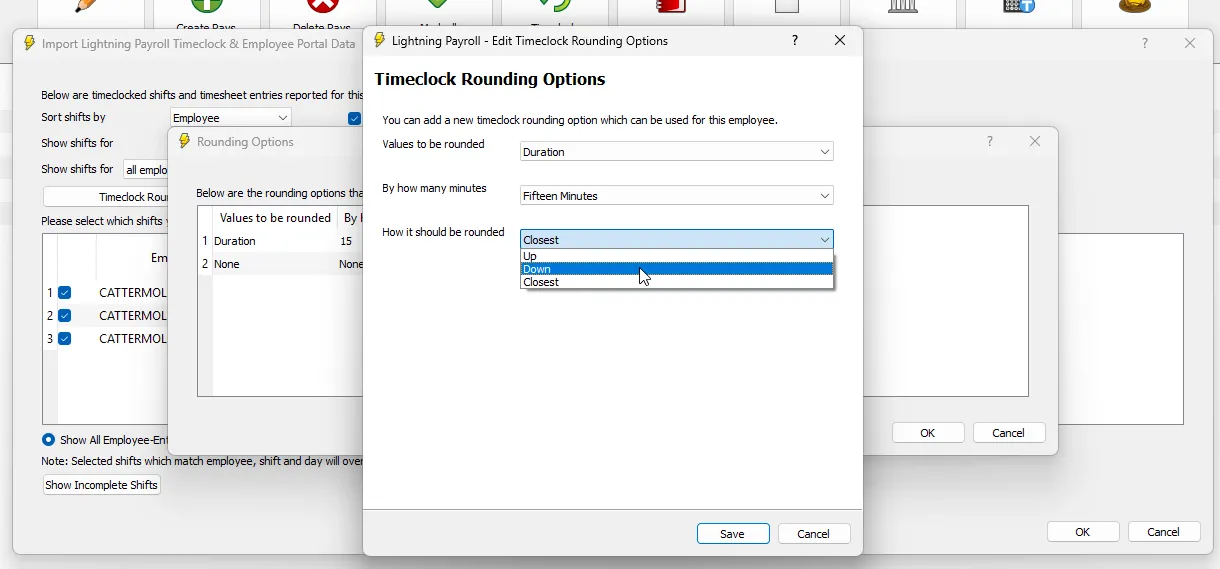
Important: If you manually edit a shift, any automatic rounding is overridden for that shift. Double-check all fields before saving.
Finalising the Sync
Once you are happy with the final Paid Duration values of each shift, give them a tick and click OK (desktop) or Download/Sync Selected Shifts (online) to complete the sync. The new and/or updated shifts will now be visible in the Rosters screen for the same pay period.
Resyncing When You Want Server Shifts Only
If you only want server-sourced shift data in your roster for the period, you can clear the roster then import again.
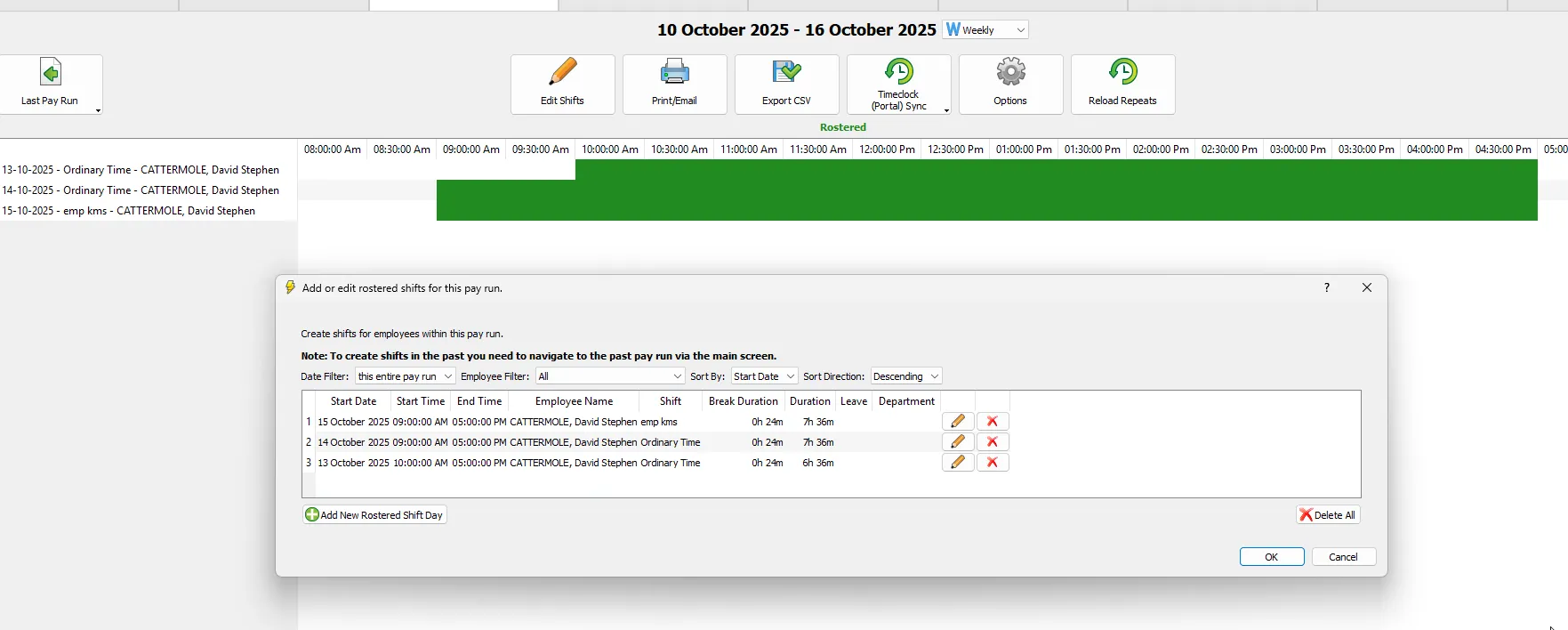
- Open Rosters for the relevant pay period and click Edit Shifts.
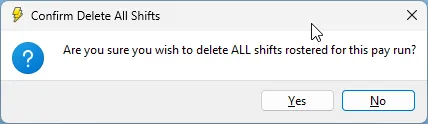
- Use Delete All to clear all rostered shifts for this pay run. Confirm when prompted. This removes roster entries only and does not delete the original timeclock/timesheet records on the server.
- Open the sync window again (Import/Manage Shifts) and make sure you tick Show Unrostered Shifts. If this is not ticked, the server shifts will not be available to import.
- (Optional) Tick Show New Shifts (Not Imported/Synced) to focus on fresh entries.
- Select the shifts to import and confirm to complete the sync.
- Back in the pay, refresh the pending pay run so it absorbs the rostered hours and allowances.
How Pays Absorb Hours
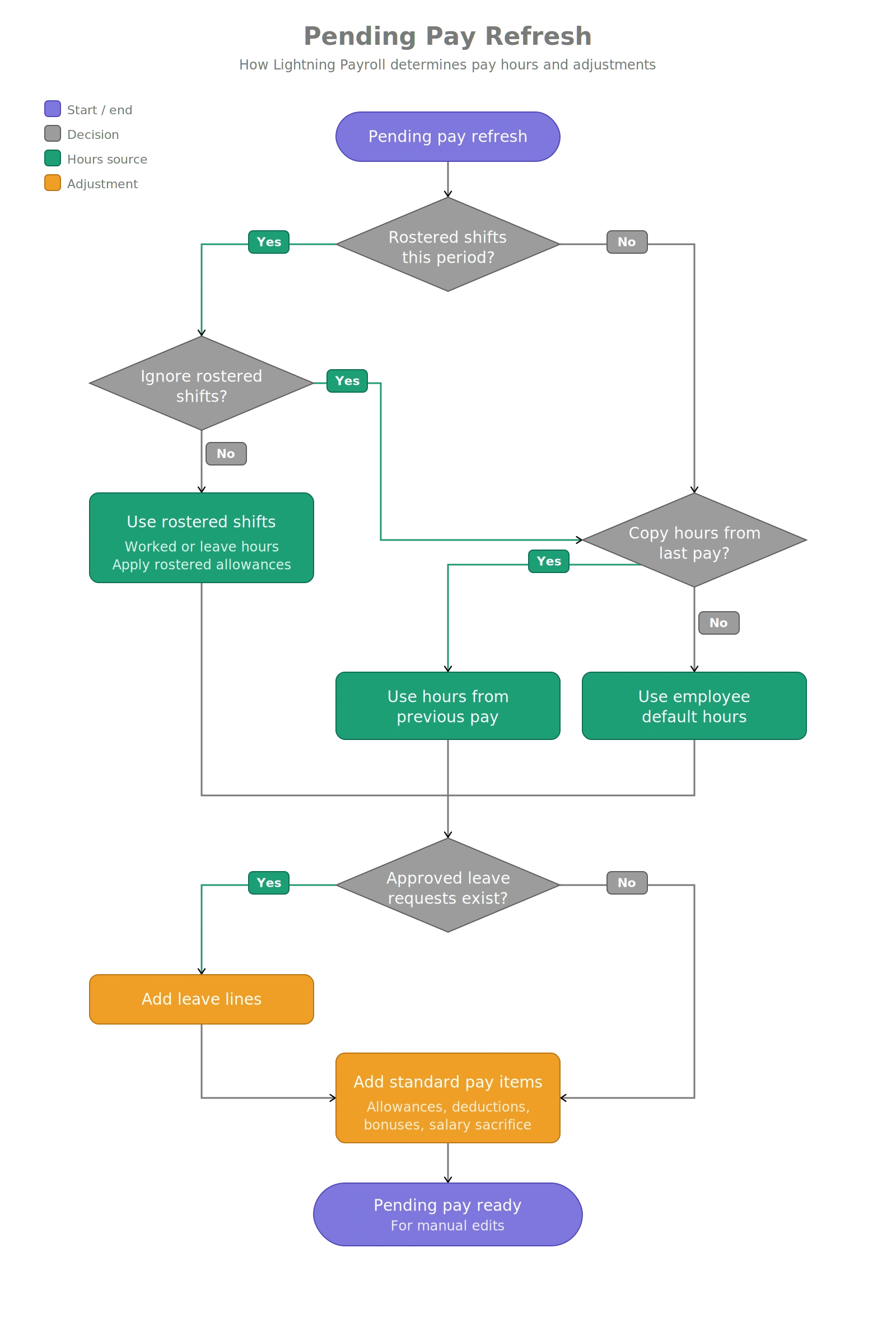
When a pending pay is refreshed, the system checks for rostered shifts first:
- If rostered shifts exist, their hours and any rostered allowances are applied.
- If not, it can copy hours from last pay (if Copy hours from last pay? is enabled under Employees >> Pay Settings) or use the employee's default award hours.
- Approved leave requests for the period are added as leave lines.
Tips and Troubleshooting
- If nothing appears in the sync window, confirm you are on the correct pay dates and tick Show Unrostered Shifts.
- Use the Prefer Rostered options to keep schedule integrity when minor early starts, late finishes or inconsistent breaks are reported.
- Use Show Previously Imported/Synced Shifts to review what has already been brought in.
- Manual edits disable rounding for that specific entry.

