


Answer
If an employee is trying to save or view their payslips on an Apple (iOS) mobile device, they can follow these steps.
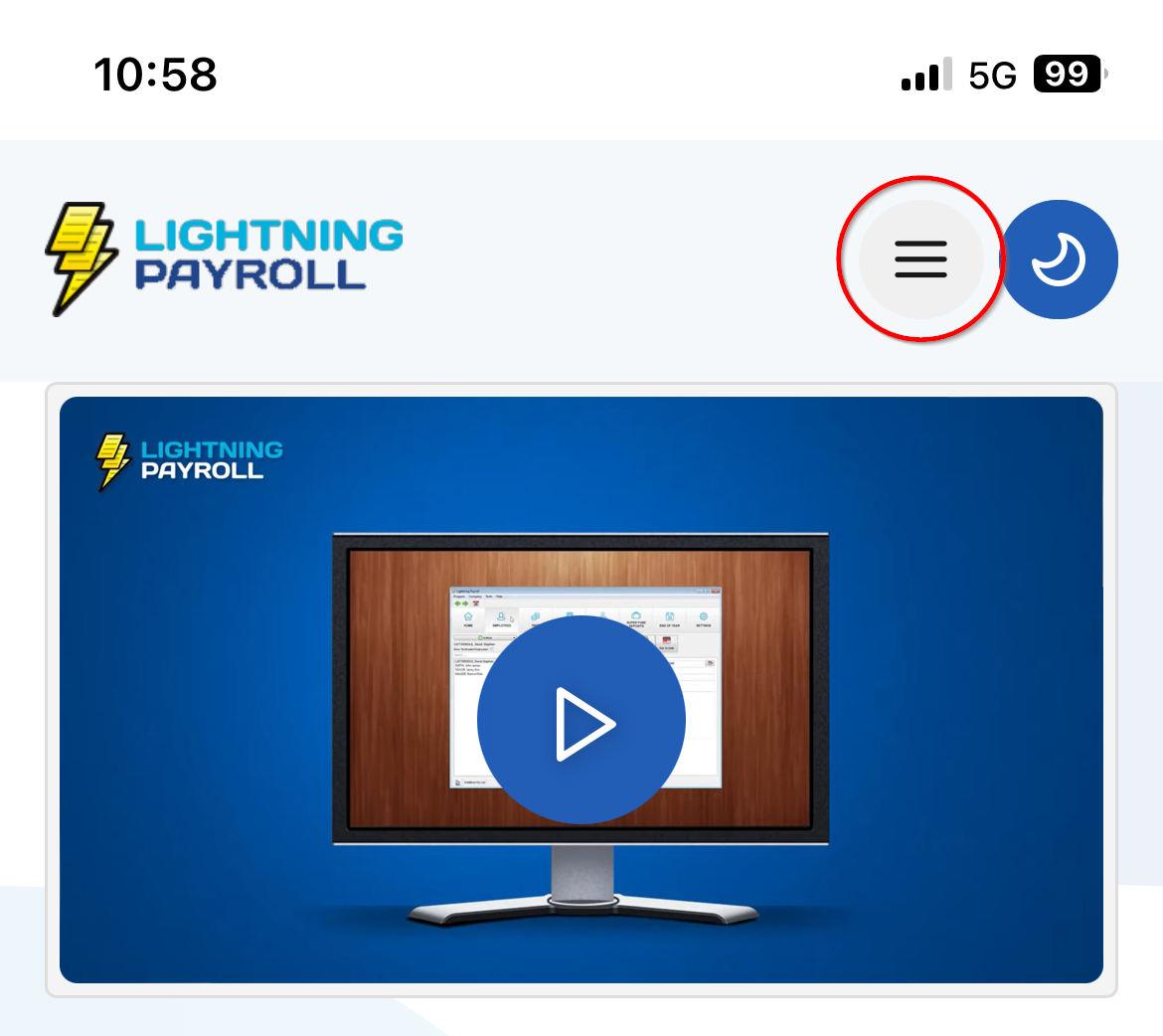
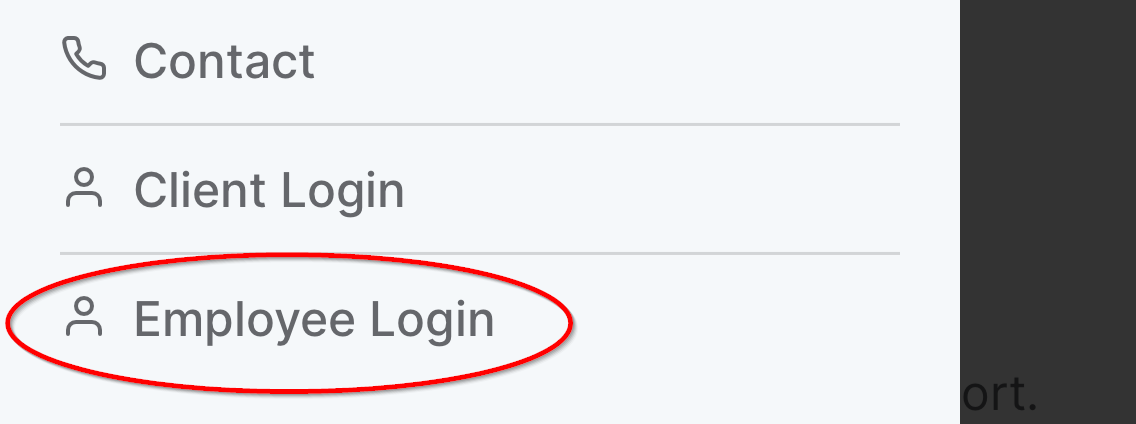
1. Click Employee Login at the top of the Lightning Payroll website and sign in.
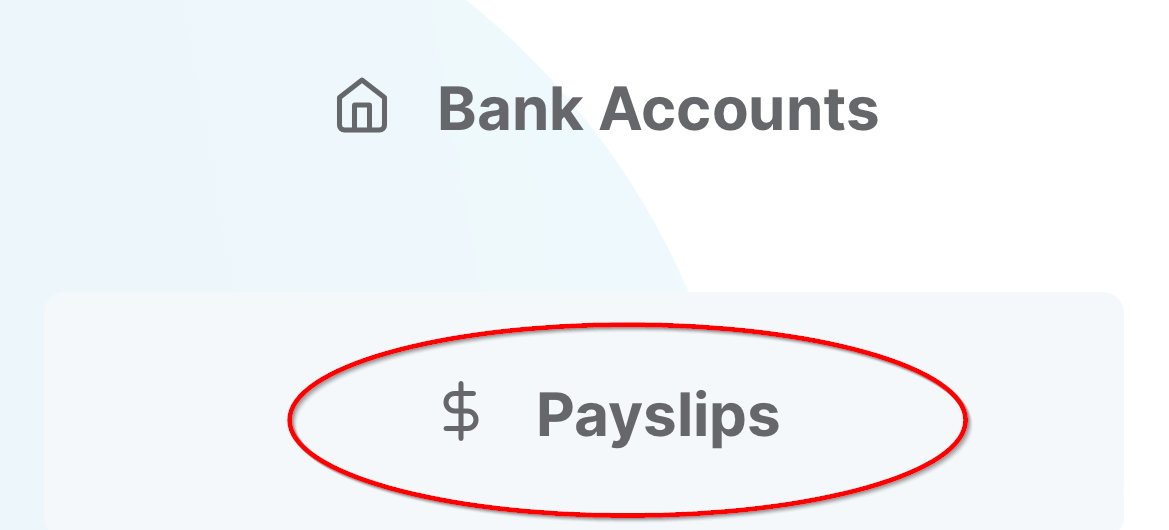
2. Once logged in to the portal, tap Pays.
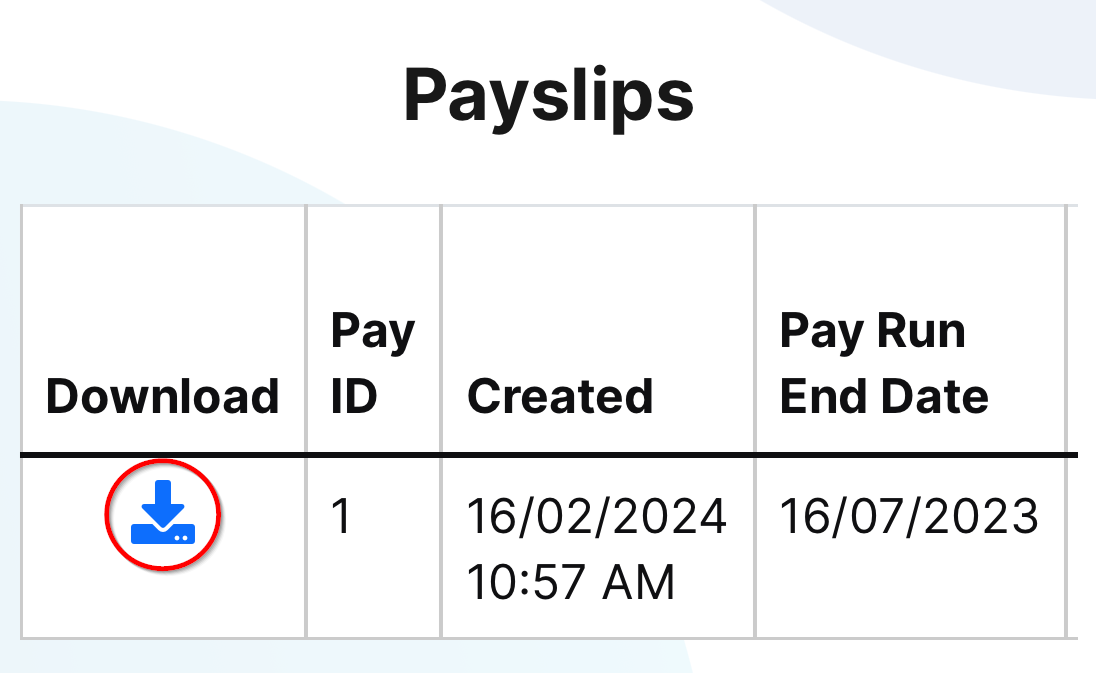
3. On the Pays screen, tap the Download button next to the payslip you want to save or view.
4. On the prompt that appears, tap Download.
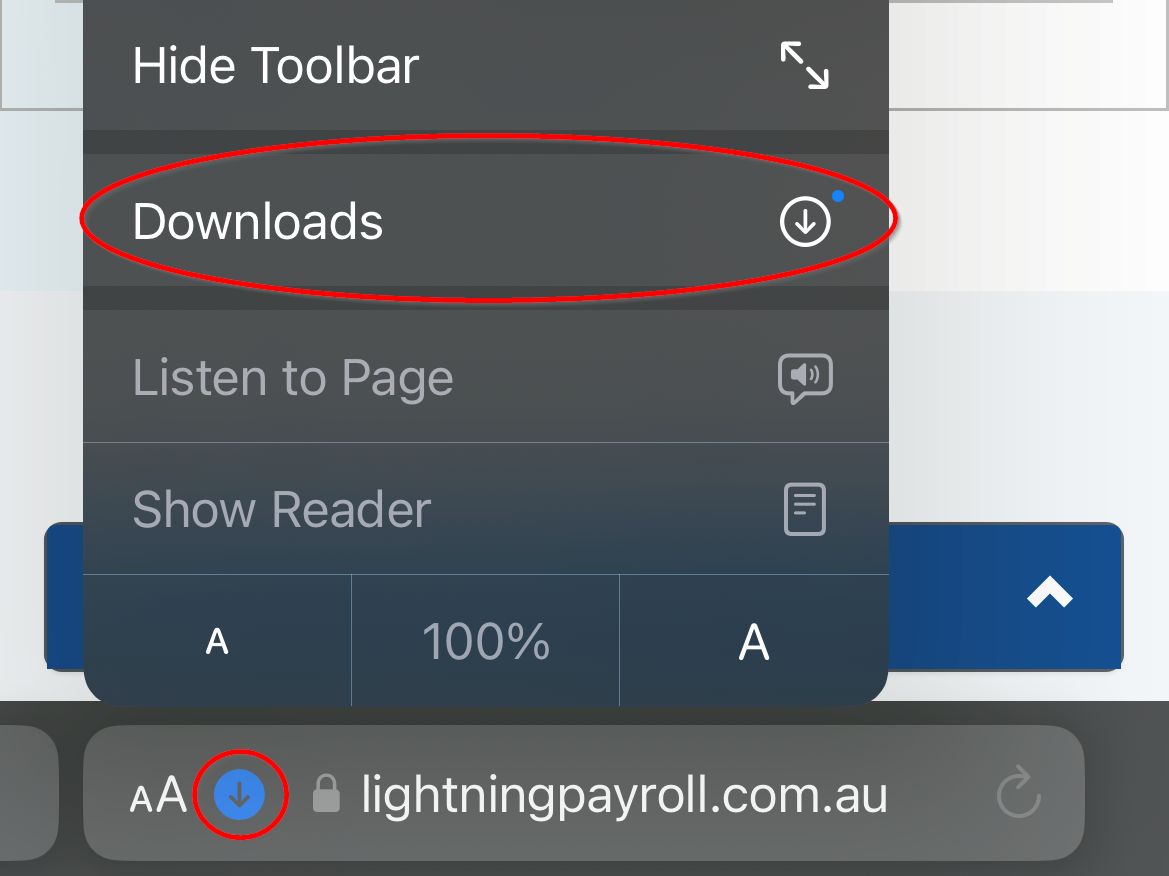
5. Tap the download icon near the address bar, then tap Downloads.

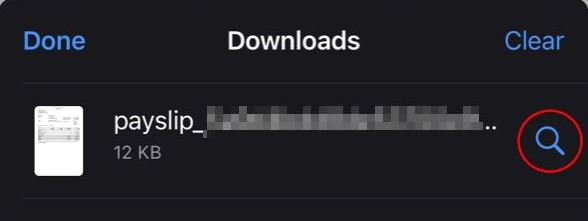
6. Tap the icon to the right of your payslip file on the next prompt.
7. This opens the Files app, where you can view your downloaded payslips.
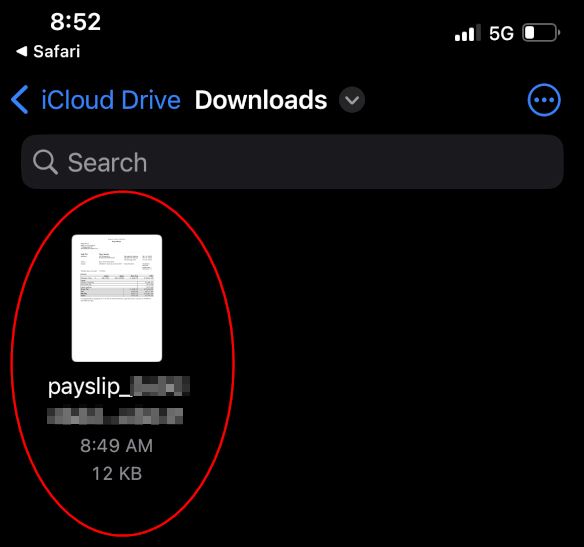
The exact appearance of the download prompt and Files app may vary slightly between iOS versions. The steps above reflect the standard Safari behaviour on iOS 16 and later.

